5 Apple Watch Features You Probably Never Use (But Should)

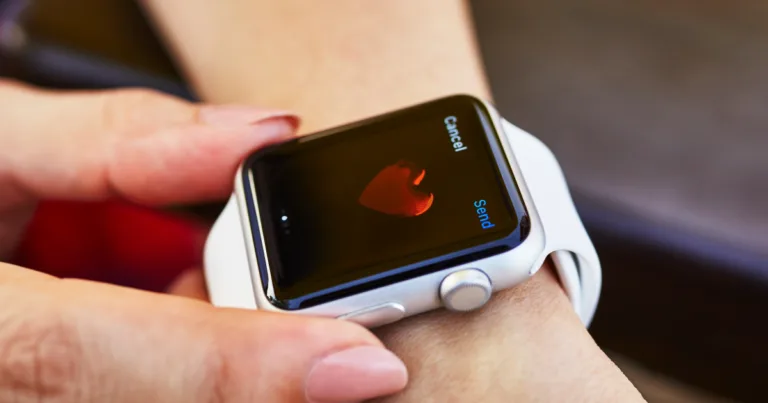
Person sends a heart message from an Apple Watch on their wrist.

Your Apple Watch can do a lot more than you think — these built-in features are hiding in plain sight.

// Make your life easier with these handy but little-known features.
Brianne Sandorf
Aug 25, 2026
Icon Time To Read4 min read
Icon CheckEdited ByBrenna Elieson

When I bought my Apple Watch Series 5 in spring 2020 (yes, it was a lockdown splurge), my life changed instantly for the better. I could track my physical activity, see my real-time heartbeat, and receive texts without being anchored to my phone. So neat!

But there were also tons of cool functions I didn’t yet know about. So to keep you from being in the dark like I was, I’m sharing the top five Apple Watch features I wish I knew about sooner.

Customized watch faces

Your Apple Watch can look however you want. You have your pick of digital watch faces — including one with Mickey or Minnie Mouse — and you can completely customize those faces, too.

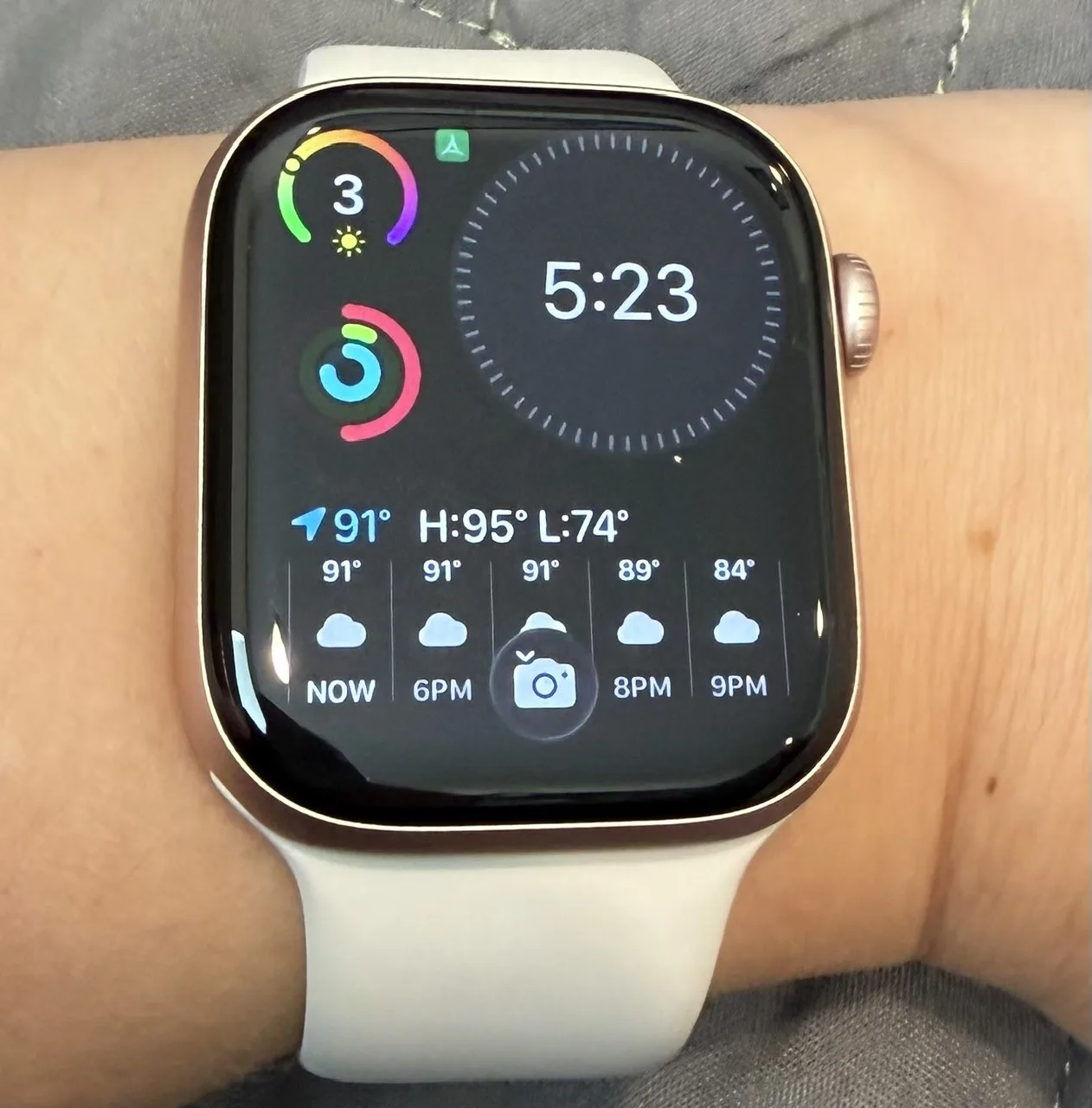
For years, I used the preset Modular Compact watch face, which automatically displays the time, date, activity rings, and weather. This information is handy for sure, but I wished I could change it up. I have asthma and anemically fair skin, so it would be nice to glance at my watch and see the air quality ratings or the UV index.

Then a few months ago, I realized that I could customize the data points to fit my needs. I swapped out the date for the UV index, and I couldn’t be happier with the change.

Customized watch face on Apple Watch Series 11

My Apple Watch Series 11 has a customized watch face, displaying the UV index, time, activity rings, and weather. Image courtesy of Brianne Sandorf, Reviews.org

Model this works with: All Apple Watches

How to use it: Press the watch face until it shrinks, then either swipe to the side (to see other watch faces) or select Edit (to change the face’s background, style, color, numerals, data points, and more).


Focus modes

Need to block out distractions? Try customizing focus modes. “One tap, and I basically kill distractions for hours,” says Reddit user digimera.

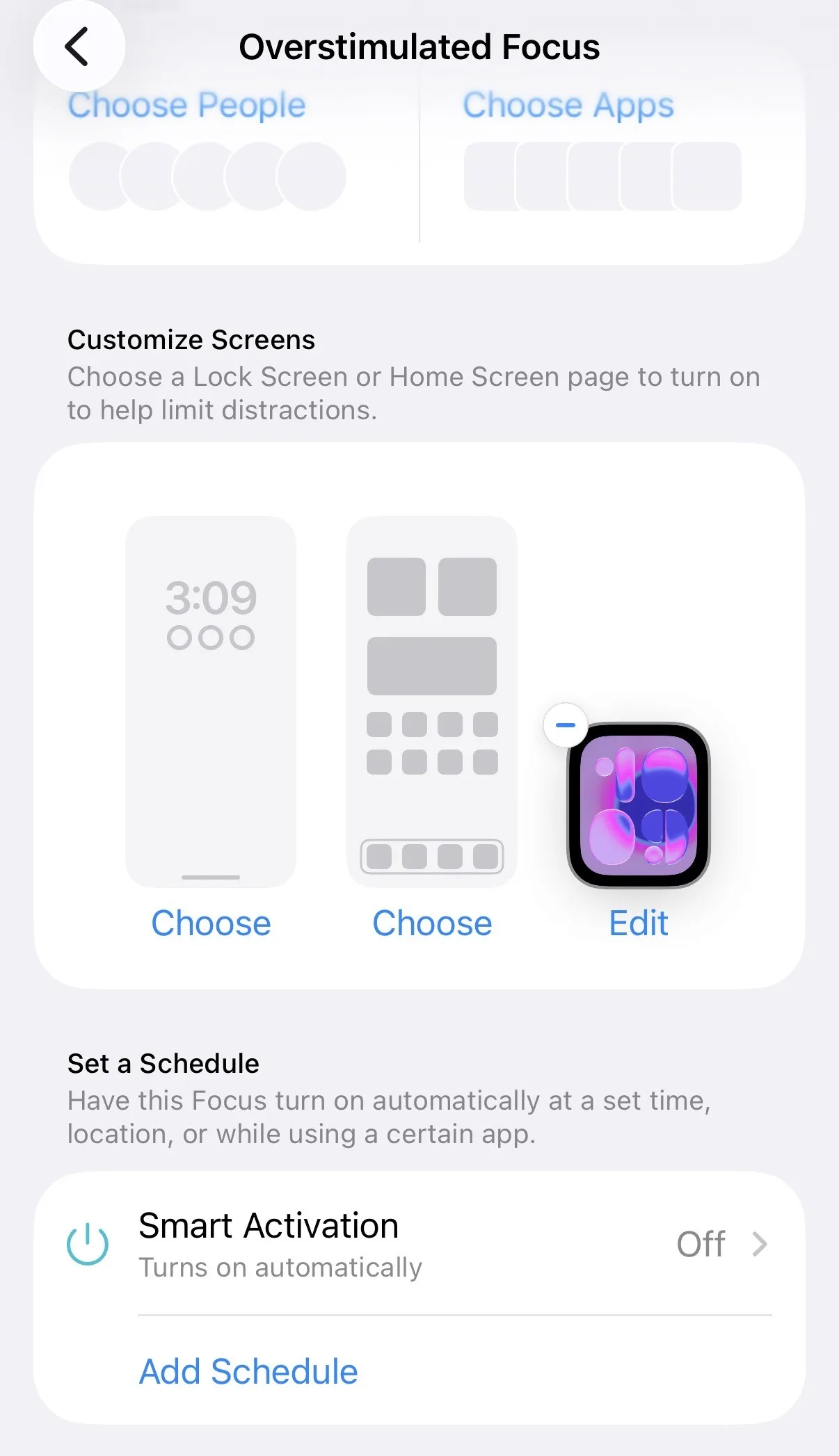
Your Apple Watch comes preloaded with several modes already, but you can also create your own to meet your unique needs. For instance, I set up an hour-long Overstimulated mode with a soothing watch face in cool colors. Any time I’m overwhelmed by too many stimuli, I can go to my Apple Watch control center and press the moon icon for an hour of peace and quiet.

Custom focus mode setup for Apple Watch Series 11 on iPhone 17

My custom Overstimulated focus mode setup on my iPhone 17. Image courtesy of Brianne Sandorf, Reviews.org

Model this works with: Series 3 or later

How to use it: Create your custom focus mode on your iPhone by selecting Settings, then Focus, then the plus sign in the upper right-hand corner. You can select a name, color, icon, watch face, and schedule for your new focus mode, then activate it using the moon icon on your Apple Watch control center.

Ready-made flashlight

I frequently get up at night with my kids, and it’s a pain to fumble around for my phone and its built-in flashlight. Luckily, my Apple Watch also has a flashlight function.

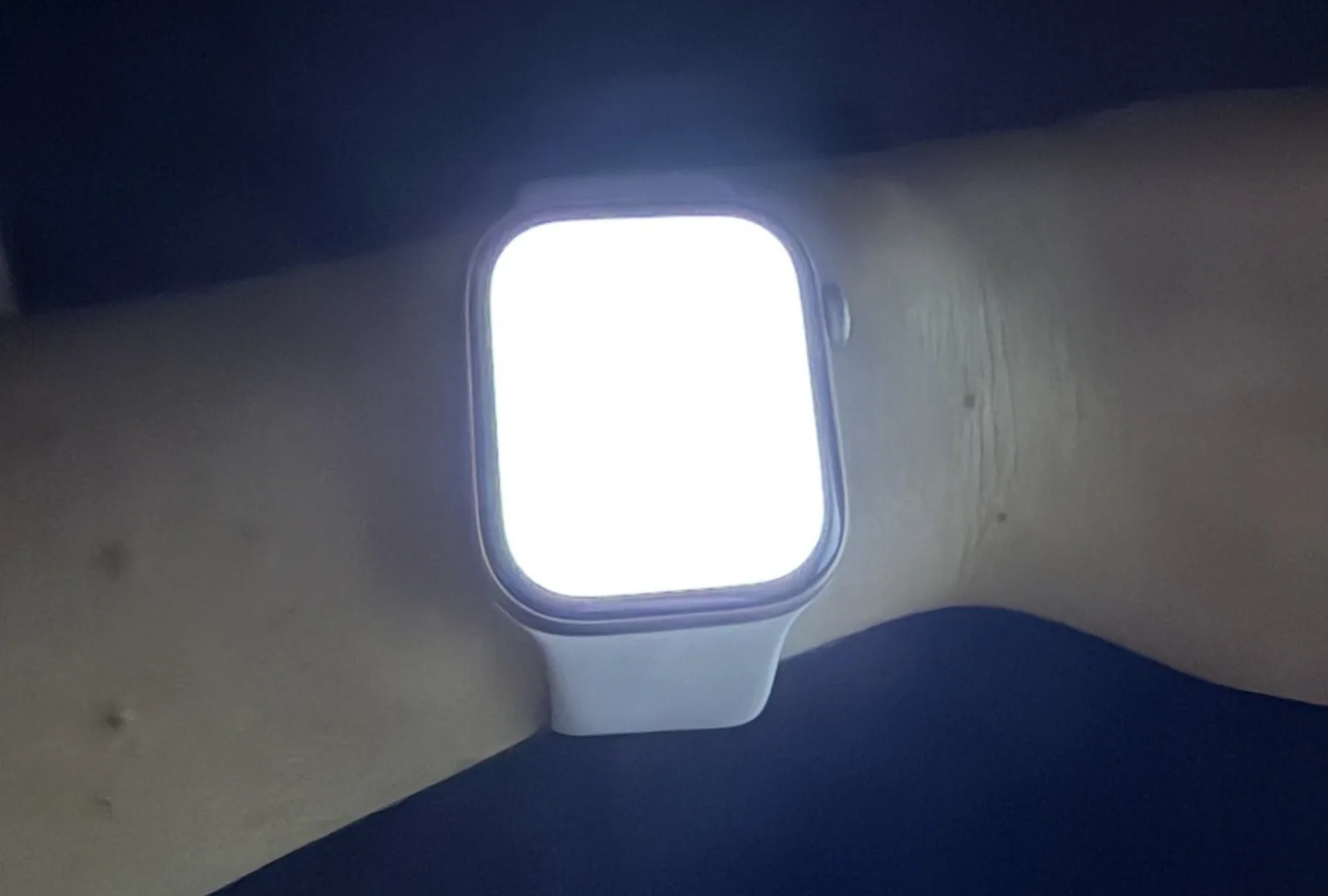
You can quickly turn on the Apple Watch flashlight through the control center. Or, if you’re a Harry Potter nerd like me, you can just say “Lumos” to magically spark some illumination. Now you’ll never be left in the (literal) dark again.

Flashlight mode on Apple Watch Series 11

My Apple Watch Series 11 in flashlight mode. Image courtesy of Brianne Sandorf, Reviews.org

Model this works with: Series 4 or later

How to use it: Open your watch’s control center and tap the flashlight icon, or press the Digital Crown and say “Lumos.”

Backtrack function

Backtrack is an Apple Watch feature so obscure and specific, I never even heard of it until Engadget clued me in — and I’m glad they did, because it’s astonishingly handy in the right circumstances. If you get lost while hiking or camping, you can use Backtrack to retrace your steps (rather than become the subject of one of the estimated 50,000 annual U.S. search and rescue missions).

The key to Backtrack is location. If you got lost in an amusement park or crowded shopping mall, you could potentially still use the feature, but it works best in remote spots without Wi-Fi interference. You also have to turn Backtrack on before you get turned around, although happily, it automatically activates when you start a workout in a solitary spot.

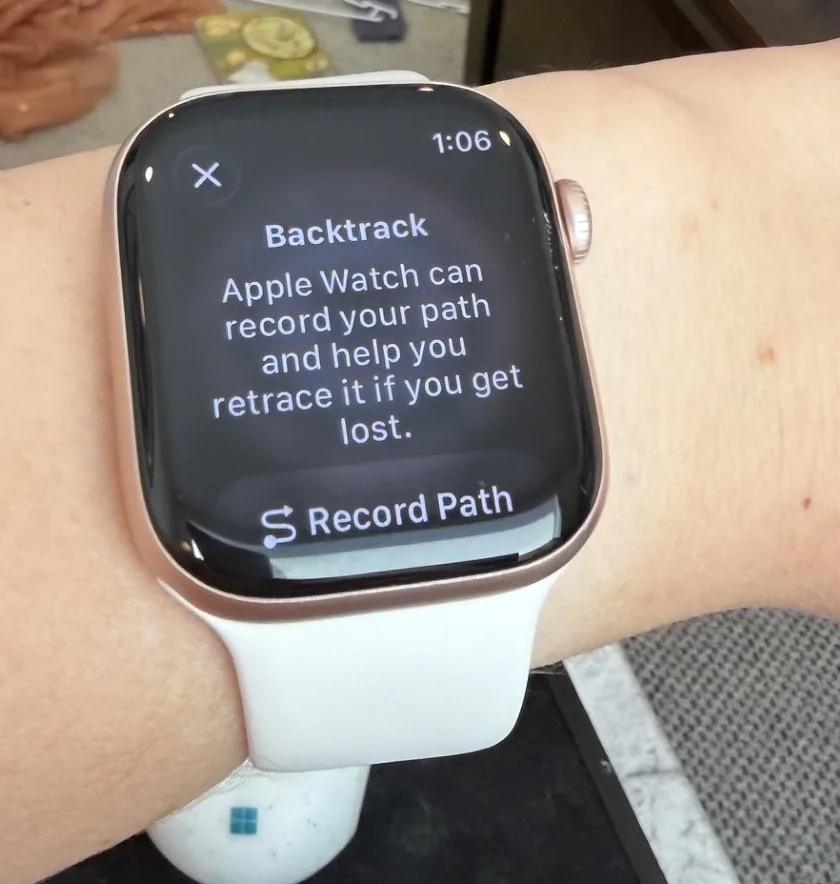
Backtrack on Apple Watch Series 11

My Apple Watch Series 11 running the Backtrack function. Image courtesy of Brianne Sandorf, Reviews.org

Model this works with: Series 6 or later

How to use it: Select the compass on the Home Screen and tap the path icon in the lower left-hand corner. Choose Record Path, then Retrace Path when you want to backtrack.

Gestures

I can’t tell you how many times I’ve struggled to answer a phone call or stop a timer on my Apple Watch while my hands were full. Luckily, newer models have the answer: gestures (also known as Assistive Touch).

The two main gestures are Wrist Flick (my favorite) and Double Tap. With Wrist Flick, you quickly turn the wrist wearing your Apple Watch to dismiss incoming phone calls, ringing timers, and new notifications. You can also use it to snooze an alarm.

With Double Tap, you pinch your thumb and forefinger together to answer calls and messages and scroll through your watch screens. I find this one trickier to use. It requires some practice, but once you have it down, it’s what dreams are made of. Just picture it: you can eat ice cream or play a mobile game with your non-watch hand while easily picking up a phone call with the other.

Model this works with: Series 9 or later

How to use it: Make the gestures using your Apple Watch-wearing hand, leaving your other hand free for whatever you need.


Found this useful? Follow Reviews.org on Instagram, Facebook, LinkedIn, or catch us on YouTube

You can also add us as a preferred Google search source for the latest in tech and home services.

Brianne Sandorf
Written by
After five years with Reviews.org, Brianne can and will tell you which internet or mobile provider you should sign up for. She’s talked with internet customers across the U.S. and beyond and addresses their real-life concerns in every piece she writes. Brianne also created the ratings system for the Reviews.org internet service provider reviews and wrote most of them. Brianne channels her lifelong interest in detective work by hunting for obscure, need-to-know information about internet service providers. She’s always learning so that she can pass her knowledge on to Reviews.org readers. Her writing and expertise have appeared in numerous other publications, including Move.org, Parents.com, and the Stanford student blog. Her work for Reviews.org is also cited in a research paper about smart home assistants titled “Expert-Generated Privacy Q&A Dataset for Conversational AI and User Study Insights.” Brianne is a homegrown Utahn who loves to travel and see new places. She graduated from Westminster College with a double major in honors and creative writing. After 20 years in a 8,000-person city, she now lives in Murray, a bustling metropolis of 50,000 where she and her husband raise their two little girls.

Related Articles

Person sends a heart message from an Apple Watch on their wrist.
5 Apple Watch Features You Probably Never Use (But Should)
Apple Watches have tons of useful functions, including some you may not know about. Check...
Illustrated reviewer giving a five-star rating for the best live TV streaming alternatives to cable in 2026.
The 5 Best Cable TV Alternatives in 2026, Tested and Reviewed
Ready to cut the cord? Compare the best cable alternatives with live TV. We tested...
Illustrated character pointing to a speech bubble with the Mediacom logo and TV icon, representing a Reviews.org review of Mediacom TV service.
Mediacom TV Review (2026): Does Bundling Guarantee Savings?
Mediacom Cable TV has affordable bundles that fit your TV, fast internet, and phone needs....
Woman wearing glasses and a green cardigan smiling while working at a wooden desk on a computer, with a brown and white small dog sitting beside her, in a bright home office with plants and natural lighting.
Remote Worker Internet Setup: What You Actually Need vs. What They Sell You
Find out whether your home internet is fast enough for remote work, when to upgrade...