
Half of all viewers use subtitles now. So why do most platforms still make them so hard to customize?
How to Change Subtitles on Netflix, Apple TV , Prime Video, Disney+, and Hulu in Less Than 30 Seconds

 4 min read
 Edited ByKelly Huh
Subtitles are going mainstream, and I’m living proof. My family has a lifelong dedication to watching media using subtitles or closed captions. I feel physically uncomfortable without them ( I always think about this meme when I turn on my subtitles). And it’s not just our family’s thing — language learning blog Preply found that 50% of Americans watch TV with subtitles most of the time.
So, if you’re all about those subtitles, which streaming services should you go for? I tested five of the most popular options and found that the subtitle experience varies between them, with one being the standout leader and two missing a crucial element.
Interested? Keep learning to read all about my subtitle testing journey and which streaming services I recommend for my fellow caption lovers.
Streaming services from best to worst subtitle settings:

Why you can trust us
At Reviews.org, our team takes its editorial independence seriously. We may earn money when readers click affiliate links, but we don't work for our brand partners, and they don’t approve our pieces before publication. To learn more, visit our About us page.

Meet the expert
Hi, it’s me, your friendly subtitle savant. I regularly use subtitles, but I don’t usually toggle the settings. So I did a little deep dive to write this review:
I checked out app subtitle settings on both my iPhone 17, my smart TV, and in some cases, my desktop. Turns out that iOS streaming apps don’t have subtitle settings because an iPhone’s default settings would override them, but I spent a lot of time playing with the TV and desktop options.
While testing, I checked out size and font choices, color controls, background and shadow options, caption speeds, and ease of finding the settings menus.
After my tests, I scored the services based on control level and ease of access.
It’s worth noting that on certain devices (iPhones, some smart TVs), you can’t adjust the subtitle settings of some of the individual apps. Instead, you need to adjust your device settings.
I checked out app subtitle settings on both my iPhone 17, my smart TV, and in some cases, my desktop. Turns out that iOS streaming apps don’t have subtitle settings because an iPhone’s default settings would override them, but I spent a lot of time playing with the TV and desktop options.
While testing, I checked out size and font choices, color controls, background and shadow options, caption speeds, and ease of finding the settings menus.
After my tests, I scored the services based on control level and ease of access.
It’s worth noting that on certain devices (iPhones, some smart TVs), you can’t adjust the subtitle settings of some of the individual apps. Instead, you need to adjust your device settings.

Brianne Sandorf
Reviews.org
Streaming subtitle settings, ranked
Rank | Platform | Size options | Font control | Background/shadow | Speed control |
| 1 | Apple TV |
 |
|
| |
|---|---|---|---|---|---|
| 2 | Amazon Prime Video |
|
|
| |
| 3 | Netflix |
|
|
| Partial (with certain plans) |
| 4 | Disney+ |
|
|
|  |
| 5 | Hulu |
|
|
| |
Platform-by-platform breakdown from best to worst
1. Apple TV: The settings that have it all
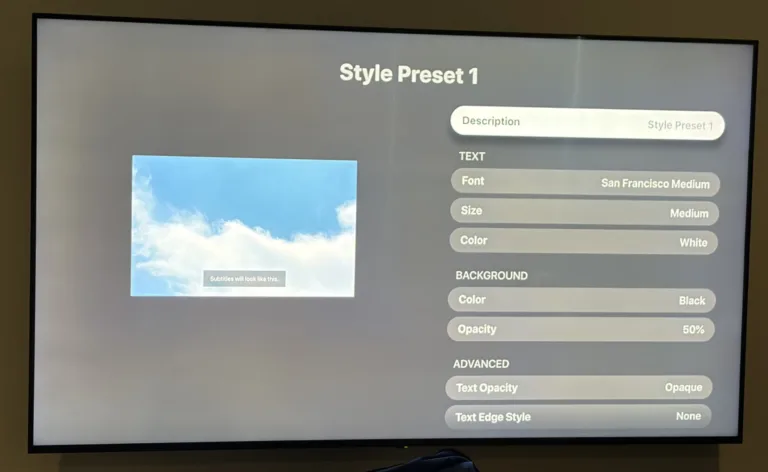
Apple TV has every subtitle setting you could want. Image by Brianne Sandorf, Reviews.org
Where to find it: When watching a show on the TV version of the Apple TV app, select the speech bubble icon on the lower right-hand side. An onscreen popup will appear with limited subtitle customization options. Select Manage Styles to see the full options.
What you can change:
- Size
- Font
- Color
- Edge style
- Highlights
- Background/shadow
- Caption speed (by slowing down or speeding up playback)
What you can't change: The onscreen popup is convenient, but its options are more limited than those on the full menu.
Why it wins: Apple TV has the most subtitle customization options. It’s also easy to find the subtitle customization menu (cries in Netflix).
2. Amazon Prime Video: Old-school but good
![Screenshot of Amazon Prime Video subtitle settings menu] [Caption: Amazon Prime Video settings are highly customizable on the Amazon website](https://www.reviews.org/app/uploads/2026/06/Amazon-Prime-Video-subtitle-settings-768x333.webp)
Amazon Prime Video settings are highly customizable on the Amazon website. Image by Brianne Sandorf, Reviews.org
Where to find it: Open up your desktop and log in to Amazon. Select Prime Video, then hover over the circular icon in the upper righthand corner. Select Accounts & Settings, then select Subtitles.
What you can change:
- Size
- Font
- Color
- Edge style
- Background/shadow
- Caption speed (by slowing down or speeding up playback)
What you can't change: It can be cumbersome to go to a separate device to update your settings.
Why it's close but not #1: Amazon Prime Video is right behind Apple TV in customization (both platforms allow you to create Clipart-style subtitles if you so wish), but it lacks the text highlighting option.
3. Netflix: Excels in the basics
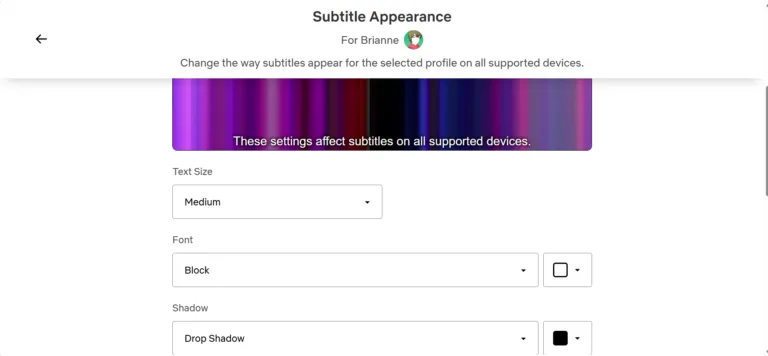
Netflix’s subtitle settings are hidden under Manage Profiles. Image by Brianne Sandorf, Reviews.org
Where to find it: Log in to Netflix on your desktop and select your profile. On the main menu, hover over your profile icon, then select Manage Profiles. Select your profile. Select Subtitle appearance. (The Netflix TV app has a subtitle menu on some devices, but it doesn’t have as many options as the desktop version.)
What you can change:
- Size
- Font
- Color
- Background/shadow
- Caption speed (by slowing down or speeding up playback if you have an ad-free plan)
What you can't change: The location of the full menu isn’t very intuitive.
Writer's verdict: Netflix offers the most important customization options, but they aren’t easy to find. And if you need to slow things down, you have to pay for a more expensive plan.
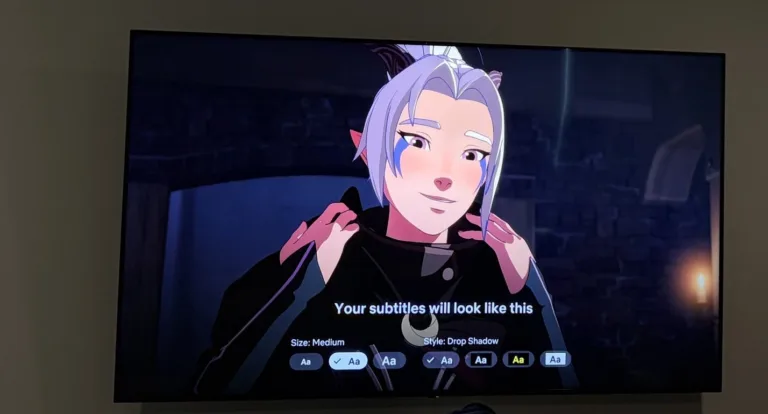
A preview of Netflix’s subtitle settings and how they appear on screen. Image by Brianne Sandorf, Reviews.org
4. Disney+: Everything you need sans speed control
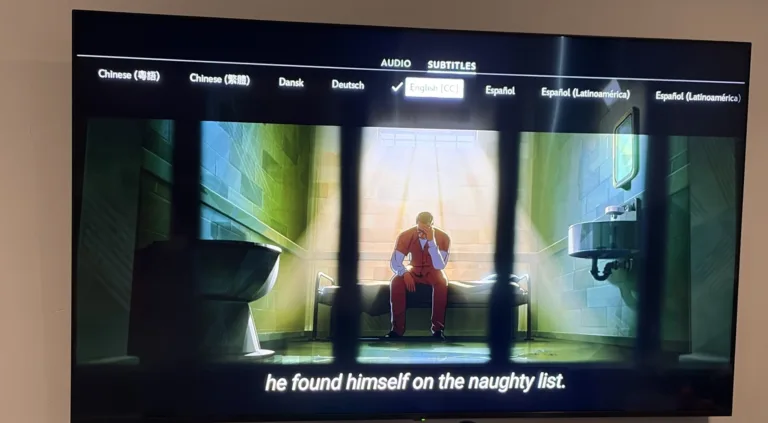
Some devices have an advanced Disney+ subtitle menu, but this TV only has language options. Image by Brianne Sandorf, Reviews.org
Where to find it: While watching a show on the Disney+ app, select Audios & Subtitles in the upper righthand corner. Select Subtitle Styling. (Be aware that not all devices support this menu, and you may have to update your device’s settings to get the exact subtitle look you want.)
What you can change:
- Size
- Font
- Color
- Background/shadow
What you can't change: Disney+ doesn’t have an option to change playback speed, so if you’re a slow reader, you might have to make use of the pause button.
Writer's verdict: Disney+ comes in clutch with subtitle styles, but it’s not your friend if you need a slower pace. You have to go to a different streaming service for that.
5. Hulu: Disney+’s less intuitive cousin
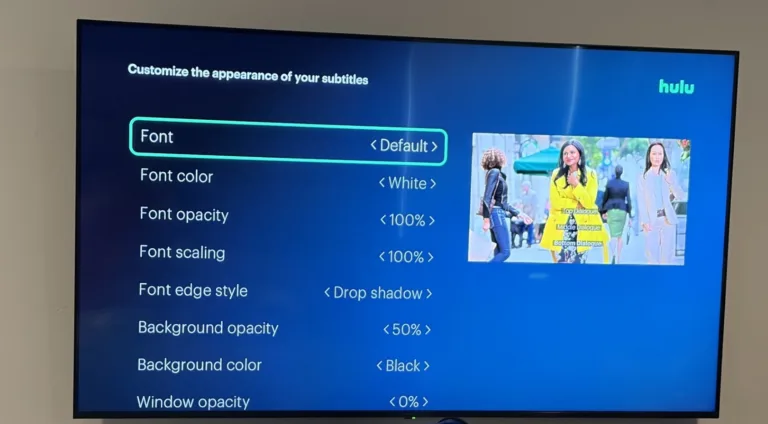
Hulu’s advanced subtitle settings are similar to Disney+’s but a little harder to navigate to. Image by Brianne Sandorf, Reviews.org
Where to find it: Select Settings, then Settings (again!), then Subtitles & Captions.
What you can change:
- Size
- Font
- Color
- Edge style
- Background/shadow
What you can't change: Like with Disney+, you can’t adjust how fast the subtitles pop up.
Why it loses: Disney+ and Hulu are now owned by the same company, so they have similar upsides and drawbacks. Unlike my other three services, both lack the crucial playback control element—but Hulu comes last because you can’t adjust the subtitle settings on the fly. You have to start at the home menu.
Subtitle tweaks that make the biggest difference
If you skimmed through this piece thinking, “I’m not reading all that,” or if you’re concerned because I ranked your favorite platform low on the list, no worries. Here’s your quick and dirty guide to upgrading your subtitles no matter the platform you stream on.
Tip #1: Bump that text up to large! When it comes to visibility, size matters, and that’s a change you can make on any of these streaming services.
Tip #2: Contrast, contrast, contrast. Add a drop shadow or dark background to make the white font of your subtitles more visible — or if you’ve opted for a dark text color, add a light background or highlight.
Tip #3: Slow things down or press pause. If you can pace the video playback so that you can read the subtitles more thoroughly, great! If not, smash that pause button to make sure you don’t miss anything. The stop-and-start can get a little annoying, but it’s not as annoying as completely losing the plot (literally).
The bottom line: Here's where to watch if subtitles actually matter to you
All five of these platforms have adequate subtitle settings, so none will leave you completely high and dry. But if you’re looking for the best of the best, Apple TV leads the way in subtitle customization, while Hulu lags behind the most.
Now you can take what you’ve learned and adjust your settings! You won’t regret it.

Related Articles
Every Streaming App Included with Spectrum TV, by Plan (2026)
Spectrum TV® includes up to 10 streaming apps at no extra charge — but which...
Spectrum TV Review (2026): Is It Worth It?
Big channel lineup, built-in streaming apps, and no contract — but is Spectrum TV worth...

Spectrum Internet Review (2026): Honest Customer Reviews
Charter Spectrum has no-contract service and no modem fee, but what’s the catch? Read our...

How Does Fiber-Optic Internet Work?
You hear about fiber internet speeds all the time, but what does that even mean?...



 Your Privacy Choices
