
Get the most out of mesh without the high RRP with the Amazon Eero 7.
Amazon Eero 7 review: No meshing around
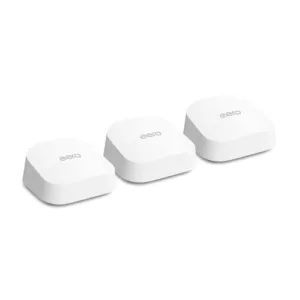
Amazon Eero 7

WiFi type
Dual-band WiFi 7 (shared 5,012Mbps speeds)
Ethernet ports
2x dual-sense 2.5Gbps (per unit)
Mesh WiFi system
Feature words (FTTP, HFC, FTTC, FW, SM)

 7 min read


When it comes to NBN providers, we recommend shifting every six months to get the best value. But for the NBN-compatible hardware you use to get online, it's not practical to shift networking gear multiple times a year. That's why it makes sense to find a networking brand that works and stick with it, especially one that offers straightforward mesh expansion. Amazon is no stranger to high-end mesh WiFi systems, but it also hasn't forgotten about cheaper alternatives.
In the case of the Amazon Eero 7, "cheaper" doesn't translate to "a whole lot of compromises". You can viably buy a single Eero 7 for use as a reliable router. But it's worth paying extra for a three-unit Eero mesh WiFi system to lock in whole-home wireless for your connected devices, especially ones with WiFi 7.
How much does the Amazon Eero 7 cost in Australia?
Reasonably priced single unit or three-pack configuration (from $299.99 RRP).
If you want cheap WiFi 7 gear, you can pay under $300 for the Telstra Smart Modem 4 (or get it for $0 as a Telstra customer), the Netgear Nighthawk RS100, or the D-Link DIR-BE3602. They're either routers or modem-routers first, with expansion as an afterthought. If you're in a large home or one prone to wireless dead spots, mesh WiFi systems are the better pick.
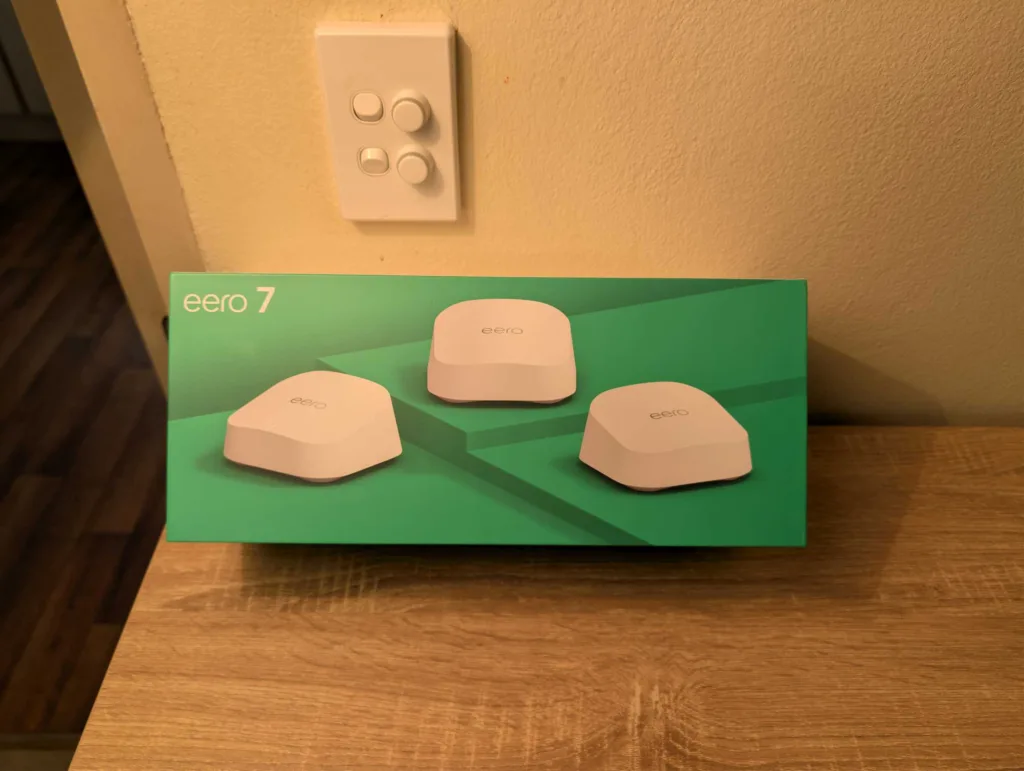
And outside of the TP-Link Deco HB210, you won't find a cheaper standalone or three-unit configuration than the Amazon Eero 7. Pay either $299.99 RRP for a single Eero 7 router or $649.99 RRP for a three-unit mesh WiFi system. I highly recommend waiting for a sale, though; I paid just under $400 for a three-unit Eero 7 during Black Friday 2025, which is a killer price.
If you’re in the market for a new NBN plan, check out the popular picks below.
Amazon Eero 7 setup and configuration
Follow the app steps and you'll be online in no time.

If you're an eager beaver like me, you'll know that most networking gear will just work if you power it on after power cycling your NBN connection box (if you're with a zero-credentials NBN provider). For some reason, whenever I review an Eero product, they don't like that trend. Instead, you should follow the guided setup via the Eero companion app, which is even better than it was when I reviewed the Eero Pro 7 earlier this year.
Even with a couple of unhelpful "try again" prompts from the Eero app because of my eagerness, I was online in under 10 minutes. If I hadn't been so peachy keen, it would've been under five minutes. The only wrinkle afterwards is a firmware update. Whether you're connecting one or more Eero devices, you'll be told you have to do a firmware update before you can get online.
It's not a bad thing to have your first firmware update as a mandatory step, but the Eero app has a weird bug where it doesn't actually perform that supposedly mandatory update. Instead, you have to dig into the settings to actually force the update to install. That wouldn't be so bad if it was an initial configuration hurdle, but I deliberately left another update to install overnight, and it didn't automatically download or install. Weird.
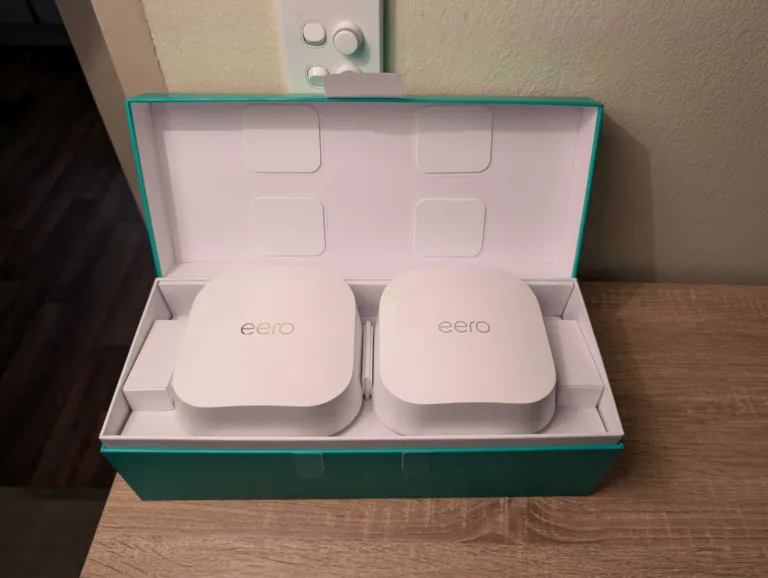
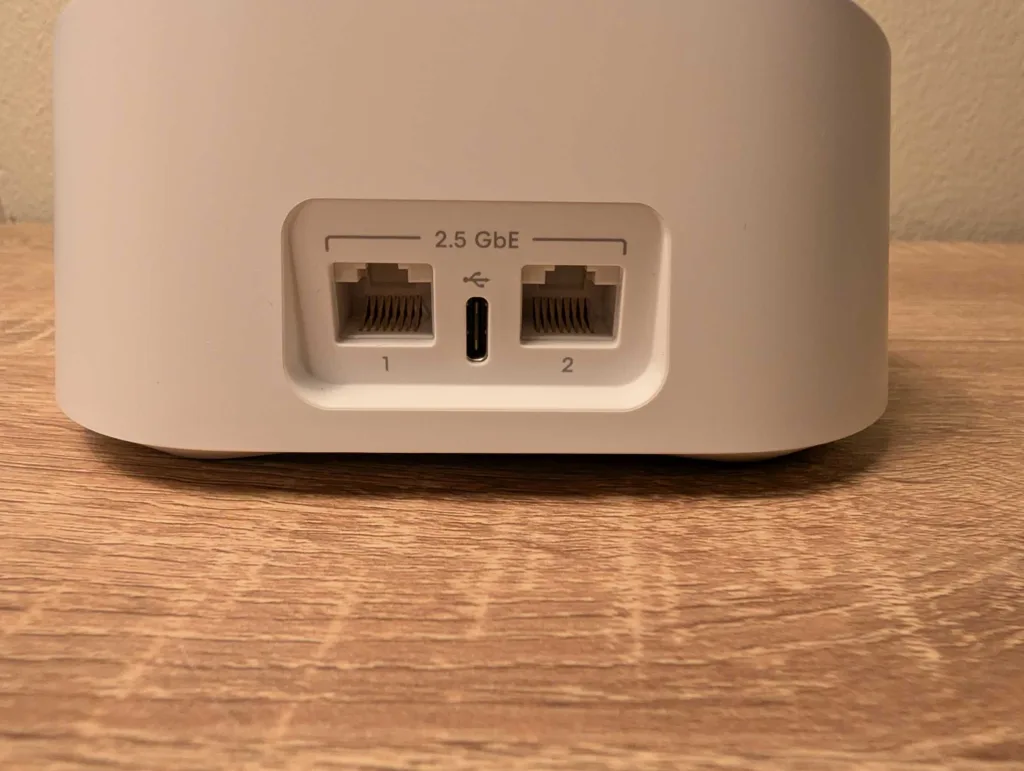
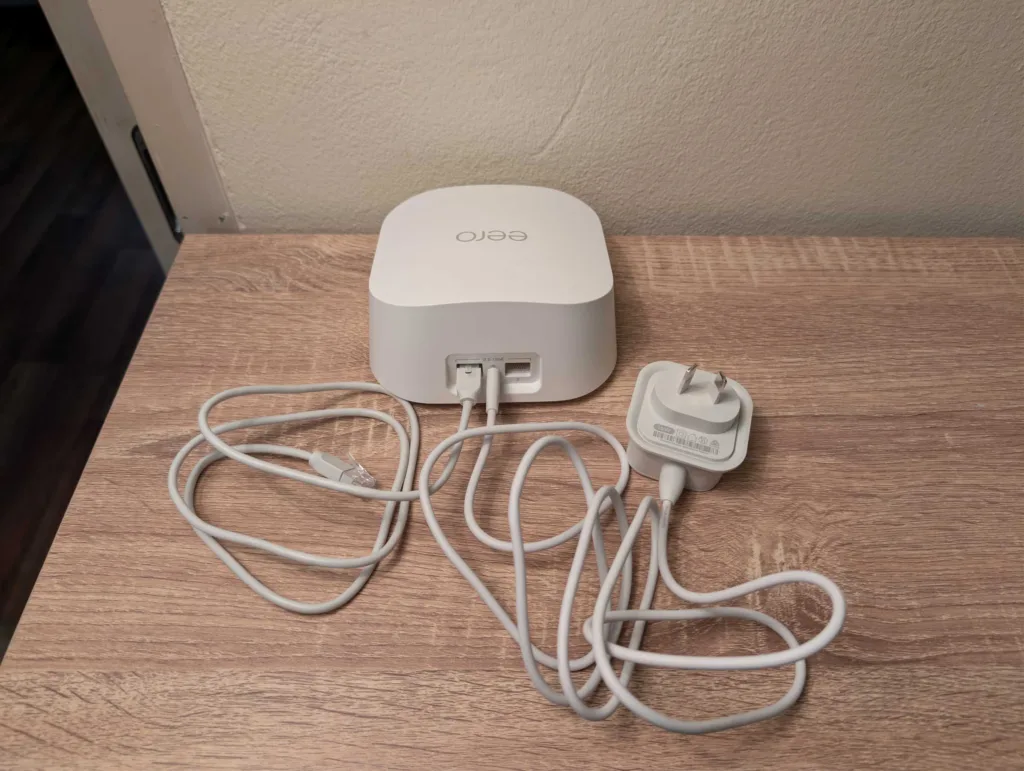
What I did appreciate was an automated speed test within the eero app once I was online. This is a good way to get an idea of your best-case download and upload speeds, and the app seemingly performs one of these every day (thankfully, in the wee hours of the morning). What's less appreciated is the size of the power adapter. For the average two-outlet wall socket, you can expect one to be blocked by the Eero 7 power adapter, which isn't ideal. Even less ideal is the continued trend of minimal ports: for the Eero 7, you get two auto-sensing 2.5GHz Ethernet ports per unit, but one of those will be hooked up to the NBN modem on the main unit.

What is Amazon?
Amazon is the largest online retailer in the world. It also provides cloud services and consumer products, including the Amazon Eero mesh WiFi system line and Firestick streaming devices.
Amazon Eero 7 speed tests
Excellent performance inside the home, even with one Eero 7.
I do internet speed tests right after initial configuration to gauge speed potential, not just overall but also relative to wired and wireless performance in different parts of my apartment. While the front part of my apartment typically never has WiFi issues, the back part has issues with any networking equipment that can’t penetrate thick walls. Based on previous experience with Eero products, I wasn't expecting the best speed test results from a single unit, but I expected those speeds to improve as I added the second and third unit.
All of my router internet speed tests are conducted with an Exetel NBN 100/20 FTTC apartment connection, using Ethernet for the first test then a Google Pixel 7 Pro for the WiFi tests. All of the tests below were performed in the afternoon. Lower numbers are best for latency (measured in milliseconds), while larger numbers are better for download and upload speeds (both measured in megabits-per-second). Use the top line of results in the tables as an idea of best-case speeds at that time of day, then every line below as comparative. Signal strength (according to the Pixel 7 Pro) is ranked from best to worst as excellent, good, fair and poor.
Normally, I'd have primer speed test results from a similar product, but there's no real need given how well the Eero 7 performed (with some minor quibbles). Check out the table below for the full speed test results when testing in the same locations with one Eero 7, two Eero 7s and then a three-unit Eero 7 mesh WiFi system.
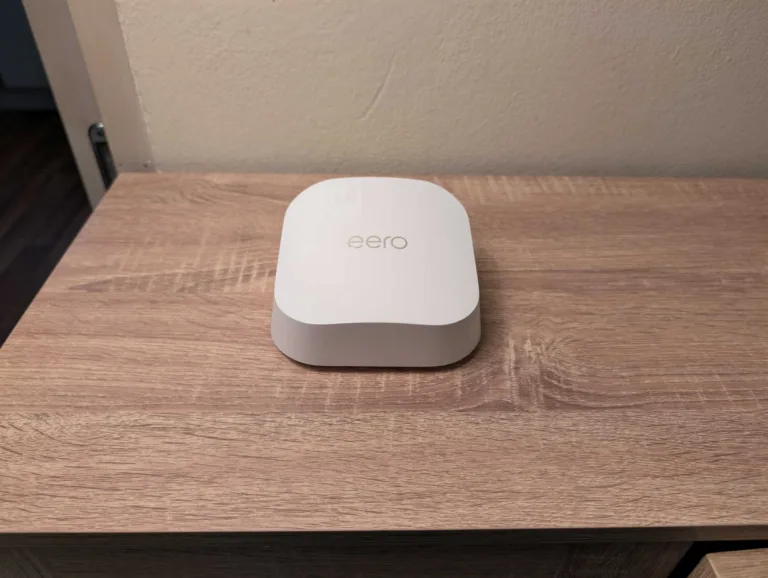
Despite its compact size – comfortably smaller than the Eero Pro 7 and Eero Max 7 – the Eero 7 has impressive performance, even with a single unit. There are a few disclaimers, though. Ideally, you want 5GHz coverage throughout the home for dual-band networking gear, so you're less likely to have speed issues and shouldn't have problems with game streaming or VR.
While testing a single Eero 7, my Pixel 7 Pro automatically shifted to the 2.4GHz band for the kitchen and laundry tests. These rooms are adjacent to the lounge, and it's particularly odd given the 5GHz coverage in the back half of my apartment. That's typically where 2.4GHz kicks in, especially for the study, which is a haven for wireless dead spots. Despite an 'Excellent' signal rating, 2.4GHz download speeds aren't great with, at best, a 20Mbps hit. It tells me that 2.4GHz isn't fit for purpose for any internet plan beyond NBN 100.
But that's only if you use a single Eero 7 unit. Adding a second Eero 7 blanketed my entire home in Good or Excellent 5GHz WiFi signal. There were two instances where the upload speeds took a 6Mbps-ish hit, but that's more strange than worrying. The bigger concern was that the garage test outside my apartment failed with the second Eero 7 connected, whereas the test completed with a single unit.
This particular issue was eliminated with the addition of a third Eero 7, and I appreciated the expanded 5GHz coverage inside and outside the home. The only outlier was the fence test, whose download speeds degraded as I added more units: from 83.7Mbps with one to 58Mbps with two (both on 5GHz), then 21.5Mbps with a three-unit configuration. It also shifted to 2.4GHz for this final test, which suggests that the Eero network was reluctant to move my Pixel 7 Pro between Eero units, resulting in the dud result. In fairness, though, having 5GHz connectivity outside the thick walls of my apartment building is more 'nice to have' than essential, with full home 5GHz being the real gold standard.
Amazon Eero 7 performance and versatility
Reliable everyday performance and easy mesh expansion.

As I mentioned above, every time you add an Eero WiFi extender to your network, it'll need a firmware update. Even with a (forced) firmware update, you're looking at around five minutes per Eero 7 unit. Use the app for straightforward expansion guidance, and it'll even tell you whether you have issues with where you're trying to place your next Eero unit.
One of the great things about Eero is they're cross and even backwards compatible. If you, say, have the Eero Pro 6E or Eero 6 Plus as part of your home network, you can swap out the one linked to your NBN connection box with the Eero 7, then use those Eero 6 products to expand your 5GHz coverage. Even if you have to wipe your Eero network (like I did for my review), the companion app does a genuinely great job of guiding you through expansion or full setup.
And for homes new to Eero, expanding your home network is a cinch, whether that's during initial configuration or down the track when you want to boost wireless coverage. The same is true of day-to-day monitoring and a solid selection of meaningful networking tweaks. It's not the same as having access to a full-blown browser-based web portal, but the available tweaks are more than enough for most homes.
You'll want to dig into the Eero app settings, too, because a couple of quality-of-life features are strangely disabled by default. Smart Queue Manager should be enabled for every Eero network. It's a Quality of Service-type feature that intuitively allocates finite download and upload speed based on specific tasks. Practically speaking, it allows people to play online games while others stream video, and others still download files while preserving the bandwidth-sensitive tasks to avoid lag spikes and buffering.
If you have WiFi 7 devices in your home network, you should also enable Multi-Link Operation. For the Eero 7 specifically, MLO lets WiFi 7 devices automatically connect to the 5GHz and 2.4GHz networks simultaneously for better speeds and reliability. Unfortunately, you won't be able to use every feature in the Eero app without first paying for Eero Plus. It typically costs $15.99 per month or $159.99 per year, and what it adds isn't really worth it for most homes. If you are tempted to add Eero Plus, every month or year you're paying starts to eat into the overall value of the otherwise reasonably priced Eero 7.
Is the Amazon Eero 7 worth buying?
A competitively priced investment in WiFi 7.
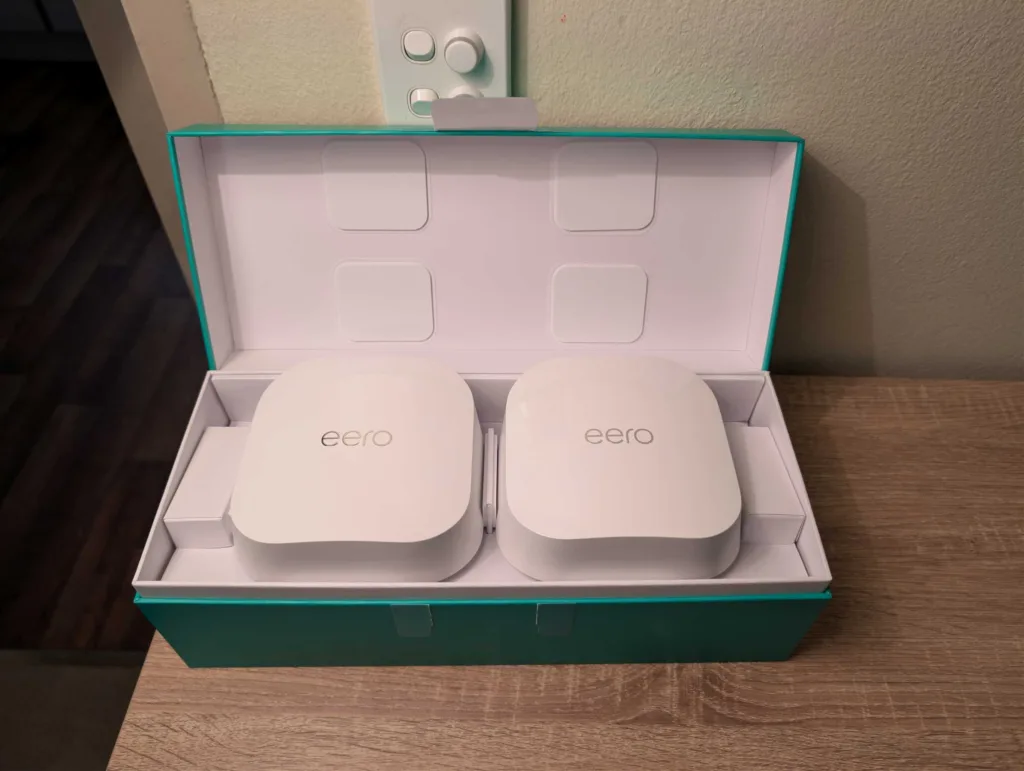
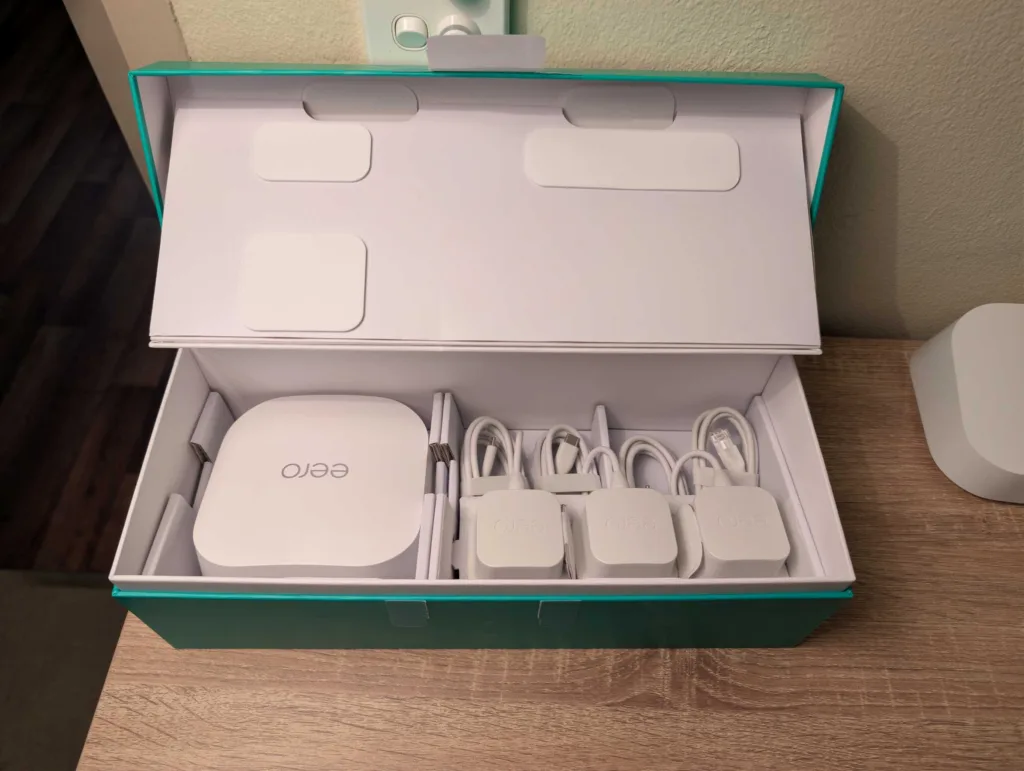
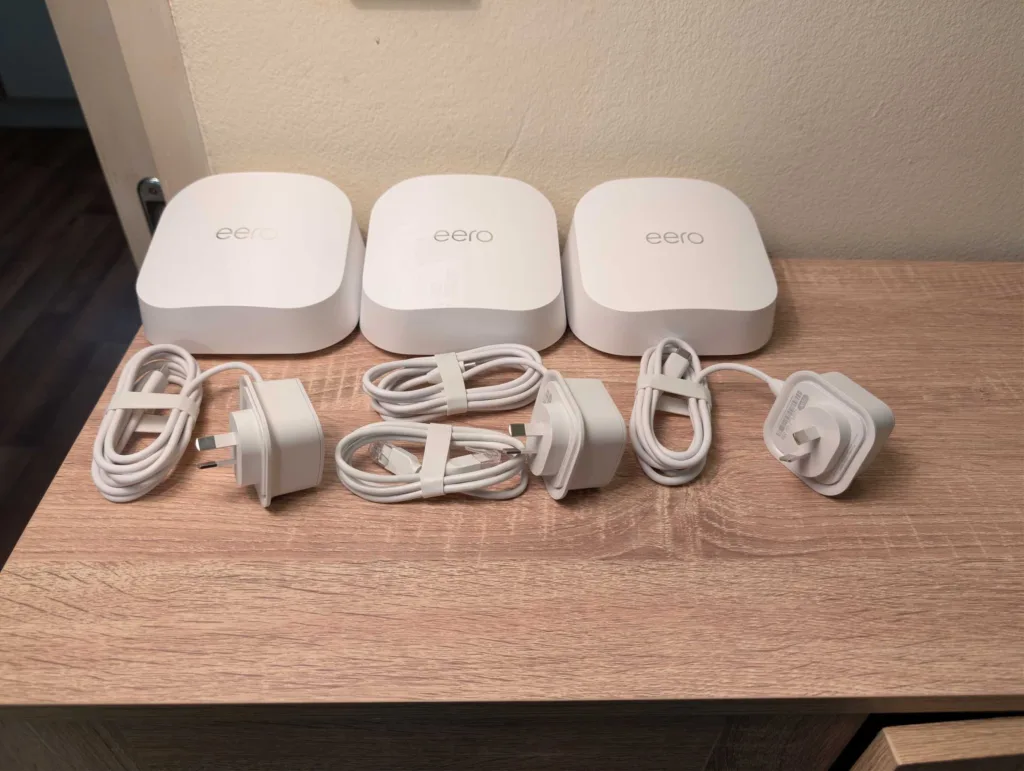
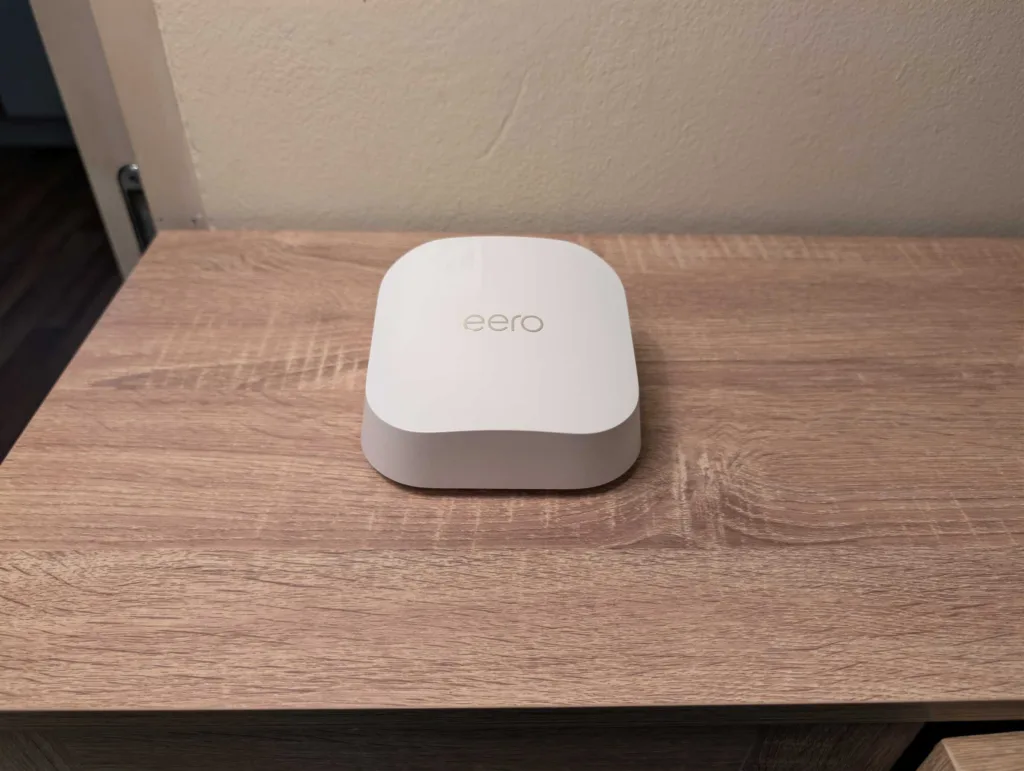
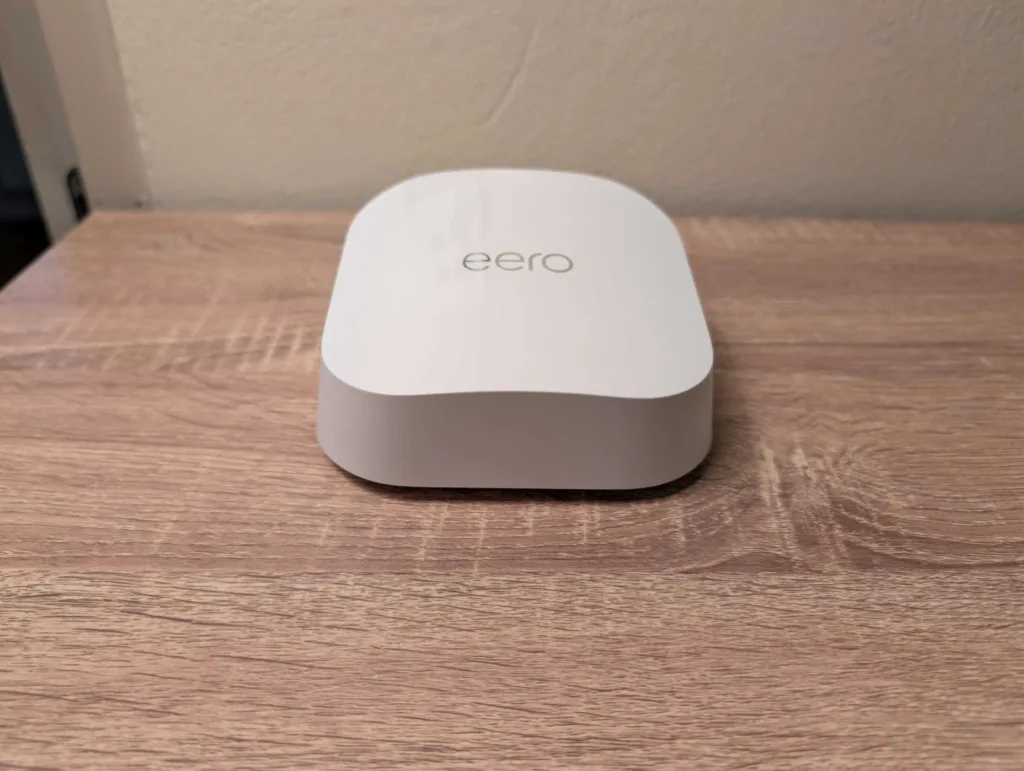
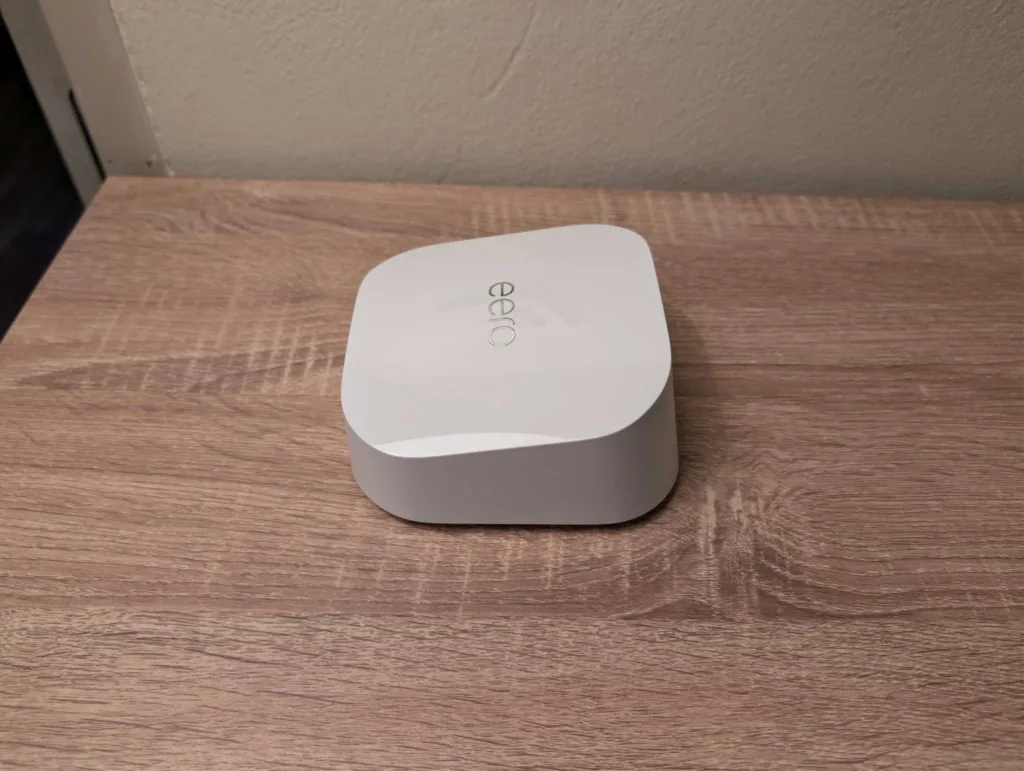
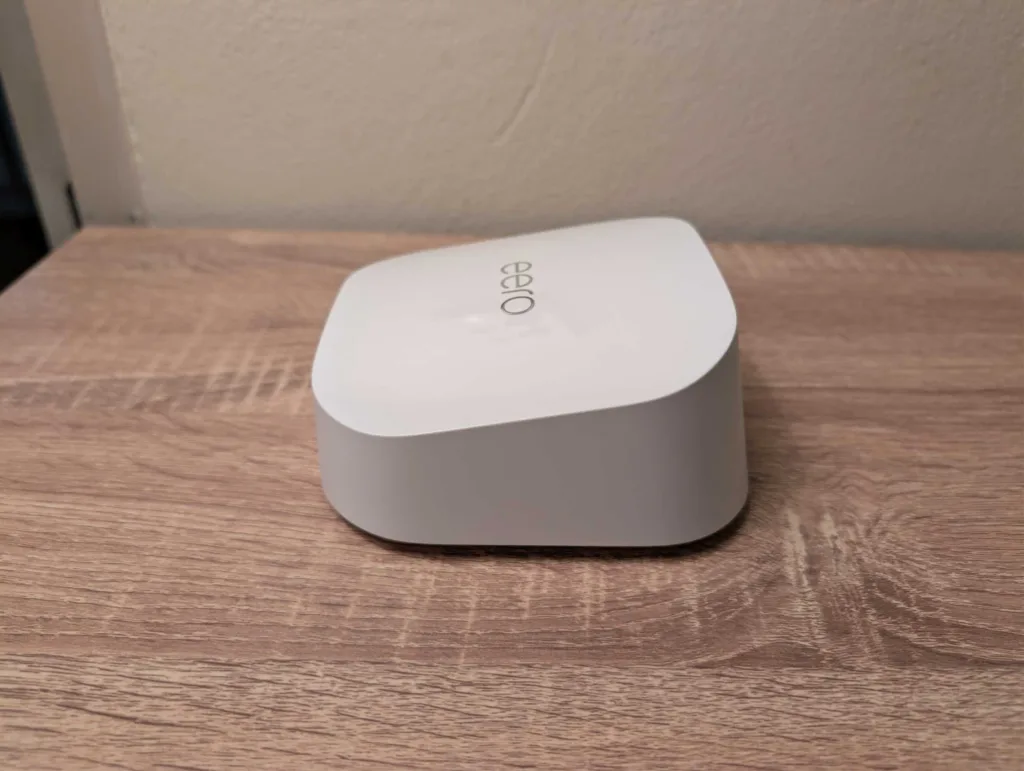
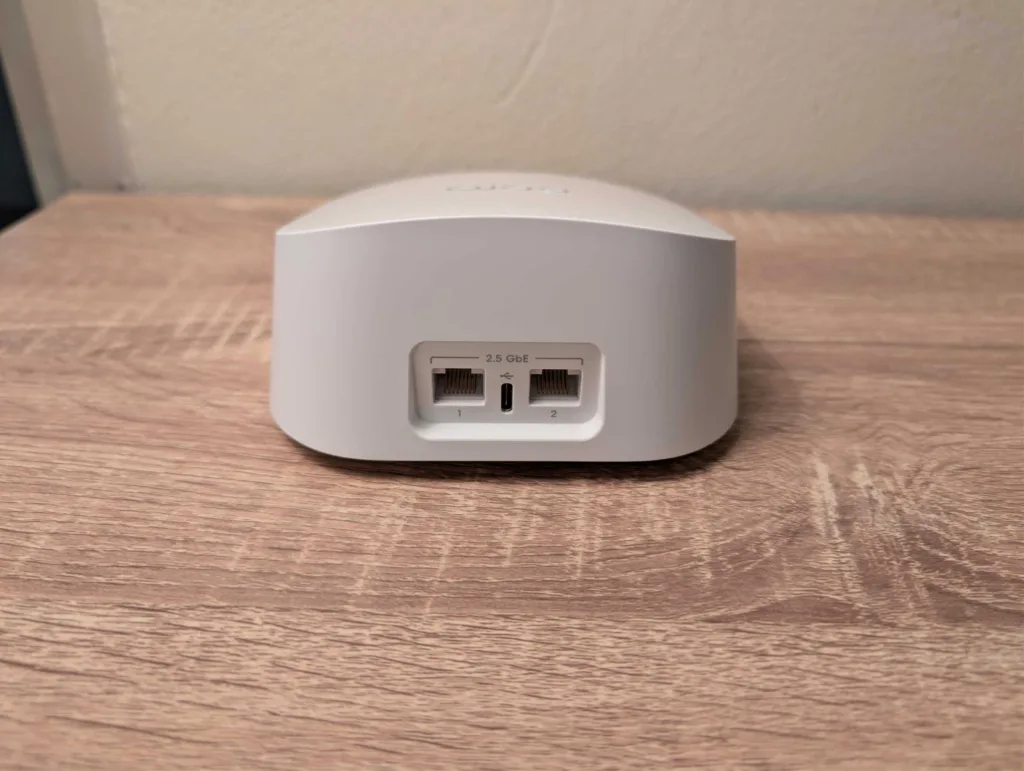

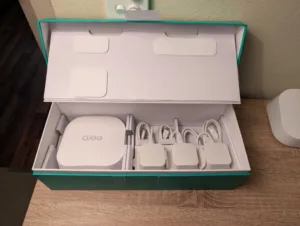
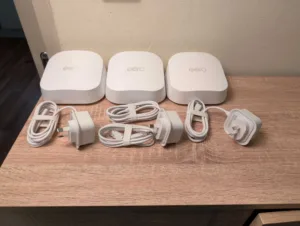
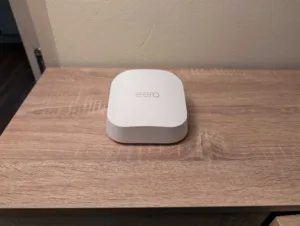
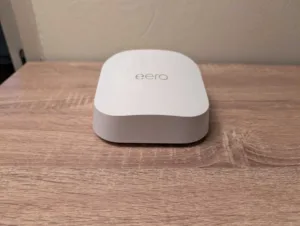
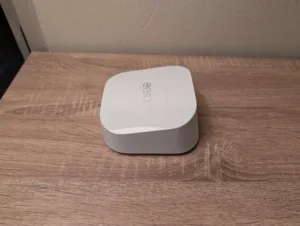
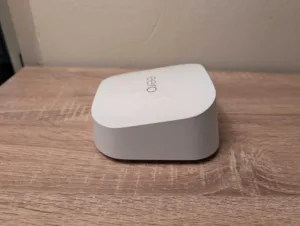
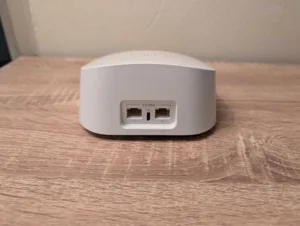
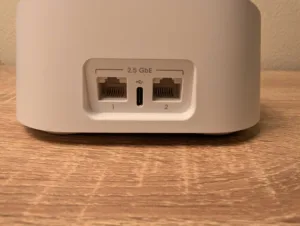
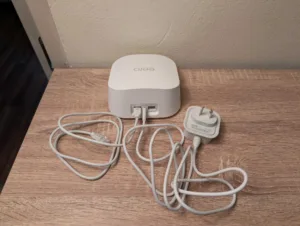
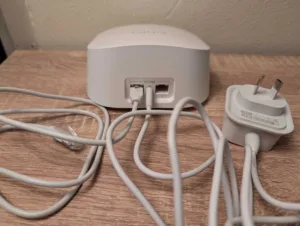
If you're already within the Eero ecosystem but want a WiFi 7 upgrade, the Amazon Eero 7 is well worth considering. Even if you're new to Eero, you'll get the key perks of WiFi 7 networking gear without having to pay for the Eero 7's pricier siblings. Outside of limited ports and some app quibbles, the Eero 7 is a great fit for most homes because it puts a big tick in the main boxes of what you want from a home network: namely, price, performance, straightforward setup, easy expansion, and intuitive features that help you to set and forget.
How we review routers
We test our routers in ways that are meaningful to everyday users. That starts with looking at where the price of a router falls in comparison to its peers, relative to the features it offers. Then comes the setup, evaluated in terms of hardware installation and initial configuration to get connected.
We like a router that’s easy to install, simple to configure and one that’s easy to tinker with for users who like to personalise settings inside a router’s operating system. Ultimately, though, a router has to offer a speedy and reliable network—mainly for preserving internet speeds but also for local transfers—which is why we pay close attention to the results of our speed tests.
From there, we test a router as an everyday device. While high-end, future-proofed bells and whistles are great, we like routers that reliably work in the background to make it easy to browse the web, play games, share files locally and, ideally, offer wide-reaching WiFi networks.

Related Articles

Honor Pro 400 review: Overdue debut
Respectable but hard to recommend.

TP-Link HB210 Pro review: Pro performance, budget price
Pro mesh promise.

Best NBN 500 plans
Australia's first speed-boosted NBN plans have arrived.



