
5 fixes you can do before kickoff
Why Some Households’ Wi-Fi Crashes During the World Cup (and Yours Doesn’t Have To)

 6 min read
 Edited ByBison Messink
This article is sponsored by Spectrum.
A Wi-Fi crash while streaming a live sporting event is particularly crushing because live streaming platforms only store a few seconds of video in reserve. Unlike on-demand streaming platforms like Netflix that can pre-load up to a minute of video, live TV options, including Spectrum TV® streaming packages with sports coverage, FOX One, YouTube TV, and Fubo don’t have this cushion. So even a tiny interruption in your Wi-Fi can freeze the game immediately, totally ruining your watch party.
The five most common Wi-Fi issues that cause your live stream to crash are:
- Router overload
- Physical signal interference
- Wi-Fi channel congestion
- Internet service provider (ISP) outages and line degradation
- Outdated firmware or hardware
Having reliable internet is crucial to an ideal watching experience. One of our favorite new internet products on the market is Spectrum's new Invincible WiFi™ package that includes 8 hours of back-up battery and seamless switchover to 5G internet when your regular internet service suffers an outage — such as when you’re streaming a game. And Spectrum Internet runs on a fiber-powered network, so the primary connection is built for steady live video.
With 104 World Cup matches kicking off in June and July, let’s go over those causes and quick fixes so you catch every second.
Why does my Wi-Fi keep disconnecting during live streaming in 2026?
The causes of Wi-Fi crashes and suggested fixes are listed in the table below:
A Wi-Fi crash at the wrong moment is unfortunately a common experience. Recently, during the UEFA Champions League final between Arsenal and PSG, fans were watching the match outside a bar in Paris on an outdoor TV. At the exact moment that Arsenal’s Gabriel took the final penalty kick, the TV cut out and the fans missed the moment entirely, losing their minds as they stared at a blank screen, not knowing what happened. If the set up had been prepped correctly, this could have been prevented.

We didn’t experience any interruptions in our Wi-Fi connection during our family’s watch party for the 2022 FIFA World Cup Final. Image by Kelly Huh, Reviews.org
1. Router overload is the most common cause of Wi-Fi outages during streaming in 2026
Some routers advertise support for 50+ connected devices, but handling that many simultaneous connections is taxing on the router's processor and memory. In a household with multiple family members streaming in 4K, gaming, video calling, and running smart home devices like a doorbell camera, the router itself can become the bottleneck, struggling to manage all that traffic even when your internet speeds are perfectly fine.
How to prevent router overload:
- Power cycle your router and modem before kickoff. Unplug both from the wall, wait 30 seconds, then plug the modem in first. Wait for it to fully connect before plugging the router back in.
- Disconnect devices you're not actively using. Every connected device occupies a slot in your router's connection table. Phones, tablets, and laptops you're not using are worth disconnecting before the match starts.
- Reboot your router regularly. Routers accumulate active connections and background processes over time. A weekly reboot keeps things running cleanly.
2. Physical interference: walls, appliances, and distance degrade the Wi-Fi signal
Physical interference can also impact your Wi-Fi connection. Brick walls reduce Wi-Fi signal strength by up to 20% indoors, and even microwave ovens interfere with the 2.4GHz band. Every wall, floor, and large metal appliance between your router and streaming device reduces signal quality and connection stability.
How to fix physical interference:
- Reposition your router to a central, elevated location. A router propped up on a shelf near the middle of your home keeps the router's signal from wasting range on exterior walls.
- Hardwire your main TV with an Ethernet cable. A wired connection from router to TV eliminates wireless interference entirely.
- Use the correct Wi-Fi band. Devices on a different floor or behind thick walls hold a more stable connection on 2.4GHz. Devices in the same room as the router should use 5GHz because it has weaker wall penetration.
- Consider a mesh system or a Wi-Fi 7 router for larger homes. Homes larger than 1,500sq ft. typically develop dead zones with a single router. Unlike older routers, Wi-Fi 7 uses three bands simultaneously (2.4GHz, 5GHz, and 6GHz) to push the signal through physical obstructions like thick walls more effectively. Some internet providers, including Spectrum, include a Wi-Fi 7 router on select plans.
3. Wi-Fi channel congestion: what it is and how to fix it
The 2.4GHz Wi-Fi band has three non-overlapping channels: 1, 6, and 11. In apartments or dense neighborhoods, all three channels may already be saturated by nearby routers. Channel congestion produces intermittent disconnections even when your own router and signal strength appear normal.
How to fix channel congestion:
- Identify and switch to the least-congested channel. A Wi-Fi analyzer shows you which channels nearby networks are crowding so you can switch your router to a quieter channel and get a faster, more reliable connection.
- Test for ISP throttling. To check whether your current provider is throttling, run our speed test at different times of the day and see if you can see significant slow downs during peak hours.
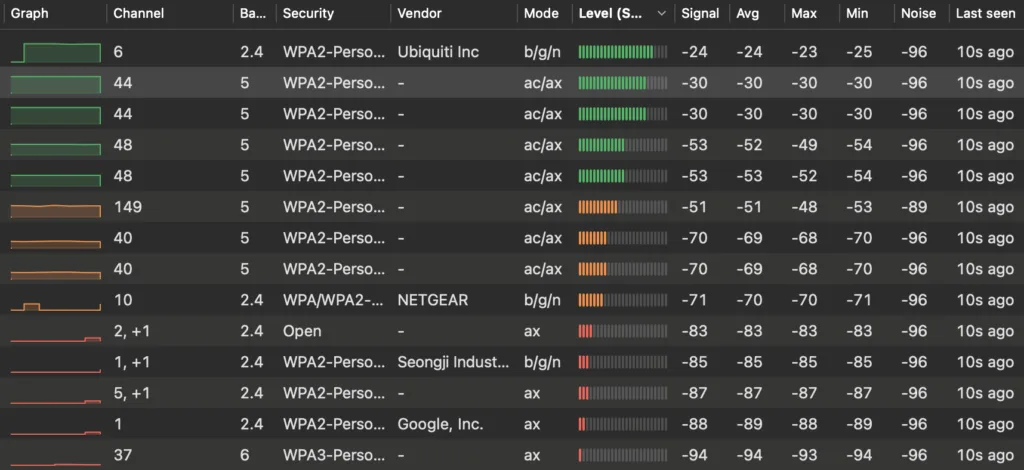
I used the NetSpot Wi-Fi analyzer to see nearby networks ranked by signal strength. The strongest connections (shown in green) sit between -24 and -53 dBm, while weaker signals (shown in red) drop as low as -94 dBm. Image by Kelly Huh, Reviews.org
4. ISP outages and line degradation
A degraded line between your ISP and home causes intermittent drops and speed slowdowns that router troubleshooting can't fix. Neighborhood outages can affect multiple customers with no change to your router's indicator lights.
How to fix an ISP line issue:
- Get a 5G back-up plan. If your Wi-Fi is down, you can use a 5G internet plan that works via cell towers. For example, eligible Spectrum Internet customers with Invincible WiFi™ can automatically switch to 5G connectivity during a qualifying outage, helping the stream recover without a long troubleshooting break.
- Run a speed test with your computer connected to Ethernet. If your speeds are below your plan’s speed, the issue could be the line. Contact your ISP and request a line inspection.
- Check your ISP's outage map first using their website. Most outages resolve within a few hours.
5. Outdated router firmware or hardware: how to update
Routers more than four or five years old may lack the processing power for modern high-speed plans, and outdated firmware adds security vulnerabilities and connection instability.
How to update router firmware:
- Log into your router's admin panel. The default credentials are usually on a label on the bottom or back (192.168.1.1 or 192.168.0.1 on some models).
- Look for an Administration, Advanced, or Firmware section. Check for updates.
When should you upgrade your internet plan in 2026?
If you've worked through all five fixes and the Wi-Fi still drops during streaming, the problem could be insufficient bandwidth. For households streaming live sports across multiple devices, we recommend selecting a plan with at least 500Mbps download speeds, which can support 4K streaming and a household of connected devices.
Your connection type also matters. Fiber-powered connections delivered over a hardwired broadband line generally provide steadier latency than fixed wireless options. This means you get smoother streaming and a more consistent connection.
Spectrum Internet is worth considering here. Spectrum Internet plans start at 500Mbps, which aligns with that benchmark for World Cup watch parties with several connected devices. It is powered by a fiber network, includes unlimited data, and pairs with Spectrum TV packages that include streaming apps like FOX One and Peacock for full FIFA World Cup 2026 coverage.
Quick checklist: What to do when your Wi-Fi crashes during a live stream game
- Restart your router and modem
- Check your ISP's outage map before troubleshooting further
- Move closer to your router, or connect your streaming device to the router via Ethernet cable
- Disconnect unused devices from your Wi-Fi network to reduce router load
- Switch your streaming device to the 5GHz band if it is in the same room as the router
- Check for router firmware updates
- Run a speed test
- Contact your ISP to request a line inspection
FAQ about Wi-Fi crashing during the World Cup
What internet speed do I need to stream the 2026 World Cup in 4K?
Streaming the 2026 World Cup in 4K requires a minimum of 25Mbps per device. A household streaming one 4K match on a TV while other devices are on the internet simultaneously should have a plan of at least 500Mbps.
Can too many devices cause Wi-Fi to crash?
Yes. There is a limit to how many simultaneous connections a router can handle, and too many can cause it to crash. Idle and background-connected devices count toward the router's connection limit, which means a household can approach the limit without realizing it.
Why does my Wi-Fi disconnect and reconnect every few minutes?
Disconnect-reconnect cycles can be caused by signal interference or band steering, which is a router feature that dynamically switches devices between the 2.4GHz and 5GHz bands.

Related Articles

Why Some Households’ Wi-Fi Crashes During the World Cup (and Yours Doesn’t Have To)
Frustrated by an internet connection that constantly cuts out while you're watching a game? Learn...

Best Sports Packages in 2026: I Tested and Ranked the Top Picks
We have a list of the best sports packages in the streaming, cable, and satellite...

How to Program Your Spectrum Remote to Your TV
Spectrum TV customers will need to program their new remote so that it works with...

Spectrum TV Not Working? Try These Troubleshooting Tips
Are you having issues with your Spectrum TV service or equipment? Try these quick fixes...



