
How to verify outages, fix playback errors, troubleshoot Wi-Fi connectivity, and more.
YouTube TV Not Working? The Top Expert Fixes to Get You Back to Streaming (2026)

 5 min read
 Edited ByBrenna Elieson
Nothing kills the mood like settling in to watch your show on YouTube TV … and then nothing plays. Just this month, in February 2026, YouTube TV experienced a significant outage that affected around 320,000 users.
Our team has tested fixes on Roku, Samsung, and dozens of mobile devices. So I compiled ways to troubleshoot your YouTube TV if your favorite show suddenly refuses to play. Don’t fret — one of these fixes is sure to help get it back up and running.

Why you can trust us
At Reviews.org, our team takes its editorial independence seriously. We may earn money when readers click affiliate links, but we don't work for our brand partners, and they don’t approve our pieces before publication. To learn more, visit our About us page.
Is YouTube TV down? How to check for outages in 2026
While some localized broadcast blackouts can be due to local feed issues, it’s also possible that YouTube TV is completely down. Checking online is one of the best ways to verify if your YouTube TV outage is a global or local affiliate issue. Here is where you can visit to verify an outage:
- Third-party status sites: Users can report issues on Downdetector.com and isitdownrightnow.com. These are real-time online sources that show community-reported outages.
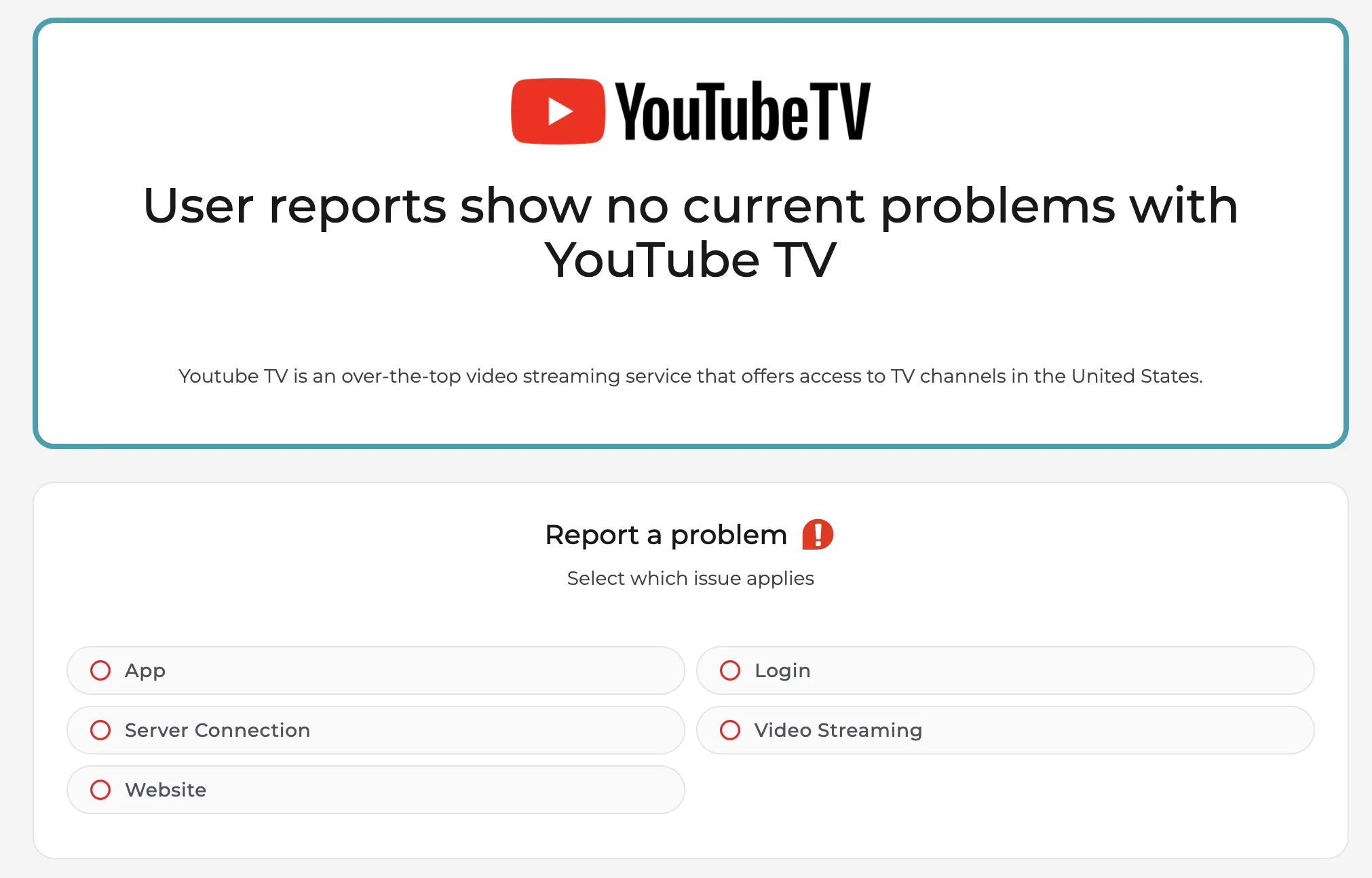
You can visit Downdetector.com to see if there are any reported outages for various online services, including YouTube TV. You can report one yourself or even engage with the comment section at the bottom of the page. Image from Downdetector.com, Reviews.org
- Social media: Reference the @TeamYouTube X handle to see official outage announcements. You can also search the hashtag #youtubetvdown to see if people are posting about their own outages.
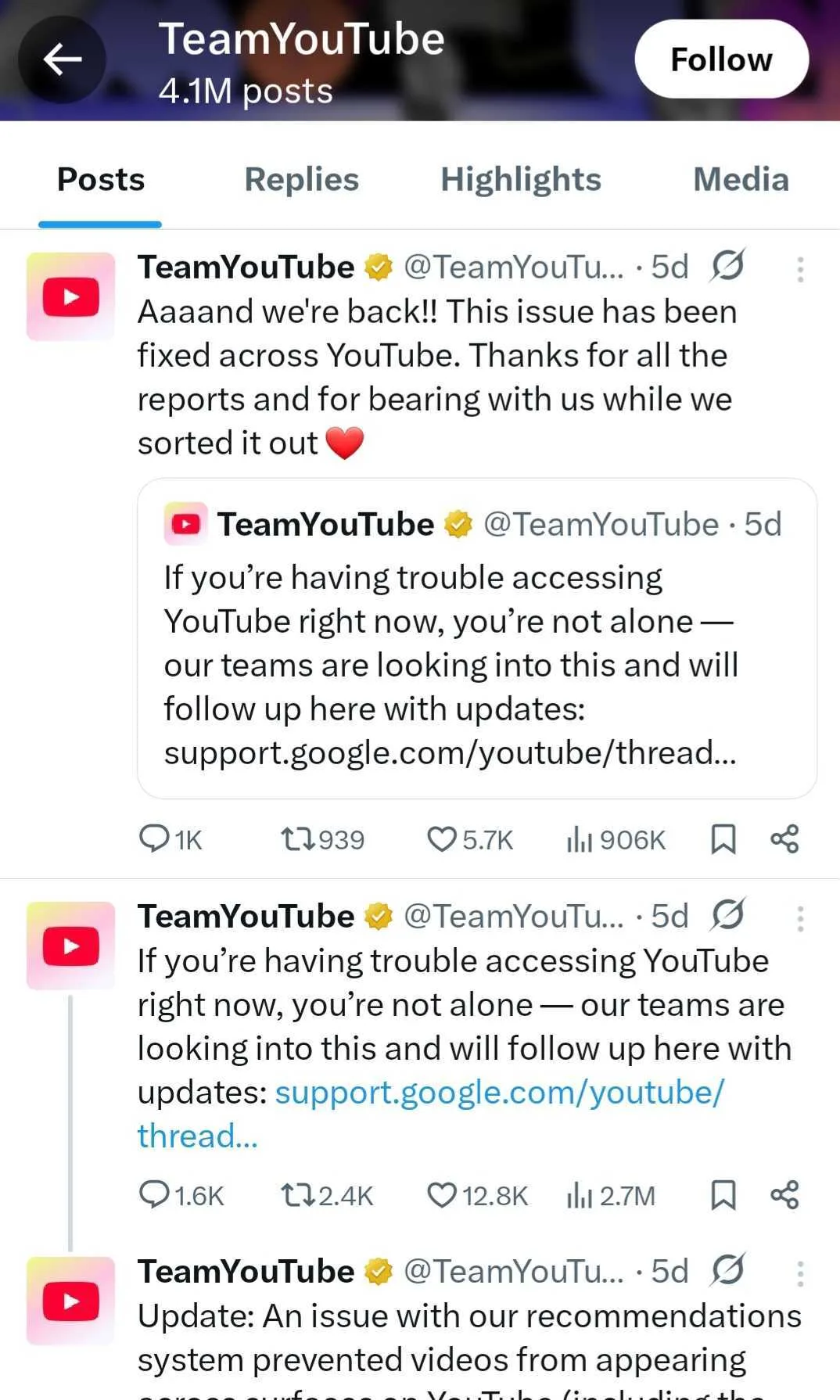
You can visit @TeamYouTube on X to see real-time updates and community comments about potential outages. Image from TeamYouTube account on X, Reviews.org
Can’t find outage news and feeling crazy? Double-check this!
Did you or someone in your family cancel your YouTube TV subscription?
Is there some issue with your payment that accidentally messed with your subscription status? Give your account a once-over before diving into the rest of our tips.
Quick troubleshooting steps for your TV and Wi-Fi devices
Do a “hard” TV reset
Sometimes unplugging is more effective than just hitting “restart” with your remote. It clears temporary software glitches, resolves memory issues, resets Wi-Fi wonkiness, and forces the YouTube TV app to fully reload.
Unplug your internet router
Unplug your internet modem/router for 30 seconds to refresh the connection.
Your Wi-Fi speed and bandwidth may be the culprit of your YouTube TV woes. Remember, YouTube TV requires a stable internet connection with minimum speed recommendations: 3Mbps for Standard Definition (SD), 7Mbps for High Definition (HD), and 25Mbps for 4K Ultra HD per stream.
Manually update the YouTube TV app
How to manually update app: Navigate to your device's app store (Google Play, Apple App Store, Roku Channel Store, or TV-specific store), search for "YouTube TV," and select "Update" if available.
Android TV/Google TV: Go to your profile icon > Manage apps & device > Updates to check for pending updates.
Can’t find any update button? This means the app is already updated to the latest version.
How to fix YouTube TV playback errors
You may see these errors pop up with messages like “This video is unavailable.”
- Playback Error 4: Usually signifies a network connection issue or that the video content is temporarily unavailable.
- Playback Error 16: Frequently relates to location service issues, meaning the app cannot verify your home area. YouTube TV is very sensitive to location settings — which gets tricky when traveling or sharing with others — so check your settings to ensure your location is accurately updated.
- Open YouTube TV > Click profile icon in top-right corner > Settings > Area > Home Area > Update
Here are a few ways to fix whatever issues (sometimes a literal ad blocker) might be blocking your viewing time.
Disable VPN and ad blockers
A VPN and ad blocker can trigger unnecessary security measures.
- VPNs mask your IP address, and YouTube TV can proactively block any request to and from them to prevent out-of-market viewing.
- Ad blockers prevent YouTube TV’s function from playing its baked-in ads. Specifically, they hide snippets of code from ads while sometimes accidentally stripping code to “start the next segment.”
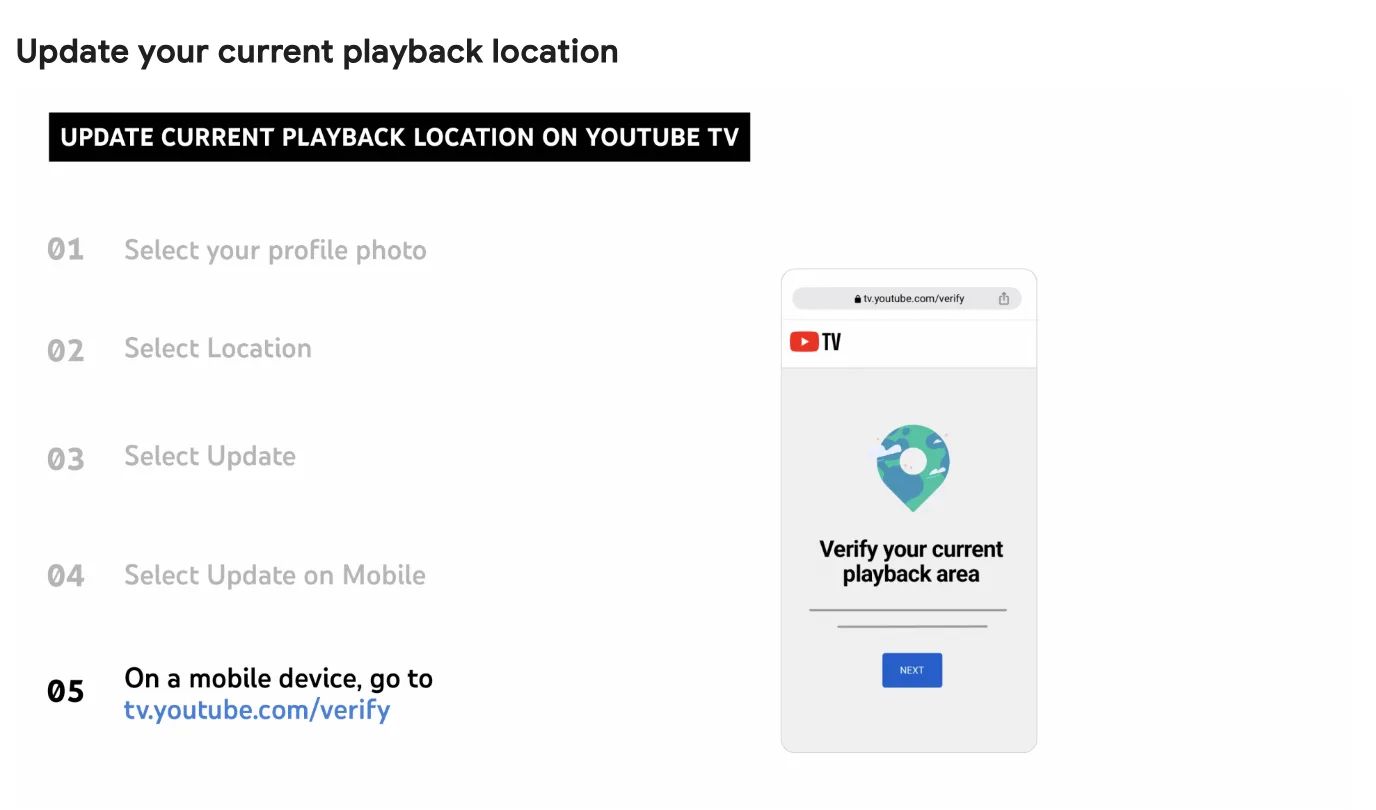
The YouTube TV help site details how to update your current playback location. Just grab your mobile device while you work through the five steps. Image from YouTube TV Help Center site, Reviews.org
Remember this!
You can update your Playback Area (where you are traveling) as much as you want. But you can only change your Home Area (your permanent address) twice a year.
Update your playback area with this two-step process
Sometimes your phone and TV are out of sync, which can give you a playback error. Take these two steps to make your TV and phone shake hands again.
- Step 1 (start with your TV): Open YouTube TV app on your TV > select your profile picture > Settings > Area (sometimes “Location”) > Update (next to “Current Playback Area”) > See message “Waiting for your Mobile device”
- Step 2 (grab your phone): Make sure TV and phone are on the same Wi-Fi > Type in tv.youtube.com/verify > Sign in to the exact same Google account you use on the TV > Tap “Allow” or “While using App” when browser asks for permission to access your location
Within seconds, your phone should say “Location verified,” and your TV screen will automatically refresh.
Device-specific fixes for Roku and Fire Stick
Smart TVs and streaming sticks are basically small computers — They store temporary data that can become corrupted over time, which leads to watching errors with your YouTube TV service.
Clear cache on Samsung and LG smart TVs
If your YouTube TV app is sluggish or super laggy, clearing the app-specific cache is the best first move.
- Clear cache/data: In your device settings, clear cache and data from YouTube TV’s app to remove any corrupted data.
- TV > Settings > Application > Manage Installed Applications > Scroll and select YouTube > First, Clear Cache > Then, Clear Data
For these smart devices:
- Samsung Smart TVs (2025–2026 Models): Navigate to Settings > Support > Device Care > Select Manage Storage, find the YouTube TV app, and select View Details > Click Clear Cache.
- LG Smart TVs: Press the Home button and go to Settings > All Settings > General. Navigate to OLED Care (or Device Self-Care) and select Memory Optimizer. This tool will automatically close background processes and clear the cache for all apps. Alternatively, you can go to Settings > Apps, select YouTube TV, and choose Clear Cache.
Fix buffering on Roku and Fire TV Stick
Streaming sticks are prone to Wi-Fi interference because they are often tucked behind the metal and glass of your TV, effectively blocking your router’s signal.
- Use an Ethernet adapter: If you frequently see the "spinning wheel of death", the most reliable fix is switching to a wired connection. Both Roku and Fire Stick support inexpensive USB-to-Ethernet adapters. Plugging directly into your router bypasses Wi-Fi congestion and provides a stable connection for high-definition 4K streams.
- Roku secret cache clear: Roku doesn't have a "Clear Cache" button in the standard menu. To force a system-level cache clear, grab your remote and quickly press: Home (5x) + Up (1x) + Rewind (2x) + Fast Forward (2x). The device will freeze for a moment and then reboot.
- Fire TV Stick background apps: Use the "Background Apps and Process List" tool from the Amazon Appstore to force-close apps that are secretly hogging your RAM and bandwidth in the background.
When nothing is working, request a callback from a YouTube TV technician
The most efficient way to escalate a helpless situation is to "Request a Callback" in the YouTube TV Help Center. By navigating to the "Contact Us" section, you can describe your issue and provide your phone number. A specialized technician will call you back — supposedly within minutes — already briefed on your account details.
The 'Nothing Worked' final checklist
If you are still seeing errors, double-check this list one more time:
- Confirm your subscription is active and the payment method is current
- Hard restart your devices (router and streaming devices)
- Check your internet connection and speed (ensure at least 25Mbps for 4K)
- Update your YouTube TV app
- Clear the cache on your Smart TV or streaming stick
- Verify your playback area and location
- Disable all VPNs and third-party ad blockers
YouTube TV not working FAQ
Netflix and YouTube TV process data differently. Netflix primarily uses Video on Demand (VOD), which pre-loads several minutes of a show. YouTube TV can freeze immediately because it has no backup data to play.
You must log into your YouTube TV account from your "Home Area" at least once every 3 months (or 30 days for MLB content) to keep the account active.
Technically, yes. But in 2026, Google implemented stricter DRM (Digital Rights Management) and AI-driven detection that looks for blacklisted IP addresses. For a stable experience, it is highly recommended to stream without a VPN

Related Articles
My Peacock Review (2026): Massive Content, Elite Sports, but Too Many Ads
Check out why the NBCUniversal Peacock streaming service could be perfect for you if you’re...

YouTube TV Not Working? The Top Expert Fixes to Get You Back to Streaming (2026)
Are you getting a playback error message on your YouTube TV account? These are the...

Netflix Review 2026: Does One of the Most Notorious Streaming Services Still Hold Up?
Wondering if you should get Netflix? Check out our in-depth review as we go over...
YouTube TV Has 3 Awesome Features (But One is Actual Garbage)
Is YouTube TV actually worth it? I ranked the three best features (hello, Unlimited DVR)...



