
I’ll walk you through how to purchase a Minternational pass so you can use your phone abroad in over 180 countries.
Mint Mobile International Roaming Review: How To Choose a Pass, Set It Up, and Use It Abroad




 6 min read
 Edited ByBrenna Elieson
In case you don’t know, it’s not free to use your phone when you travel outside of the U.S. You’ll get hit by roaming fees that will financially (and emotionally) wreck you. A Mint Mobile International Pass (“Minternational Pass”) is a safe, easy, and affordable way to stay connected when you’re traveling out of the country.
A Minternational Pass allows for texting, calling, and high-speed data while abroad. Mint Mobile also gives you the option to enable Wi-Fi calling so that you can hop on any Wi-Fi network to communicate with friends and family back in the U.S. for free.
How does Mint Mobile roaming work? And how can you get a Mint Mobile international pass? I’ve been reviewing mobile carriers for a while now, and as a Mint Mobile customer myself, I’ll show you exactly how to use the Mint app to get your Minternational Pass up and running.

Why you can trust us
At Reviews.org, our team takes its editorial independence seriously. We may earn money when readers click affiliate links, but we don't work for our brand partners, and they don’t approve our pieces before publication. To learn more, visit our About us page.
Minternational Pass at a glance
If you’re hopping on a plane to travel abroad, and you want to be able to talk, text, and use high-speed data on your Mint Mobile phone, you don’t have to look for a local SIM card wherever you land. Simply set up a Minternational Pass on your phone before you travel.
While you can use your phone while connected to a Wi-Fi network abroad, it does get tiring to constantly ask “Do you have Wi-Fi?” (in another language) wherever you go.
Fun fact: “Wi-Fi” in Spanish is pronounced “Wee-fee.”
A Minternational Pass allows you to keep your U.S. number, pay upfront for the pass before or during travel, and avoid unexpected overage fees (no need to worry about accidentally spending hundreds on roaming).
If you hit your data cap while roaming internationally, your internet speeds will throttle. According to Mint Mobile’s 2026 roaming policy, after the high-speed allotment is used speeds will be reduced to “128 kbps” for the duration of the pass. Note: That might be enough for WhatsApp texting and not much more.
To get started with a Minternational Pass, you must first have an active Mint Mobile plan.
What to expect with a Minternational Pass:
- 1-, 3-, 10-, or 30-day durations ranging from $5 to $20
- The option to purchase before or during travel
- A 360-day window to active the pass after purchase
- A limit of three passes purchased at one time (use one, store two)
- Service coverage in over 180 countries
- No connectivity on cruises or airlines
- Activation via the Mint app, the website, or by texting ACTIVATE to 6700
- Data-free access to the Mint app, online account, and Mint Care calls
- Free incoming text messages, while outgoing texts require a pass
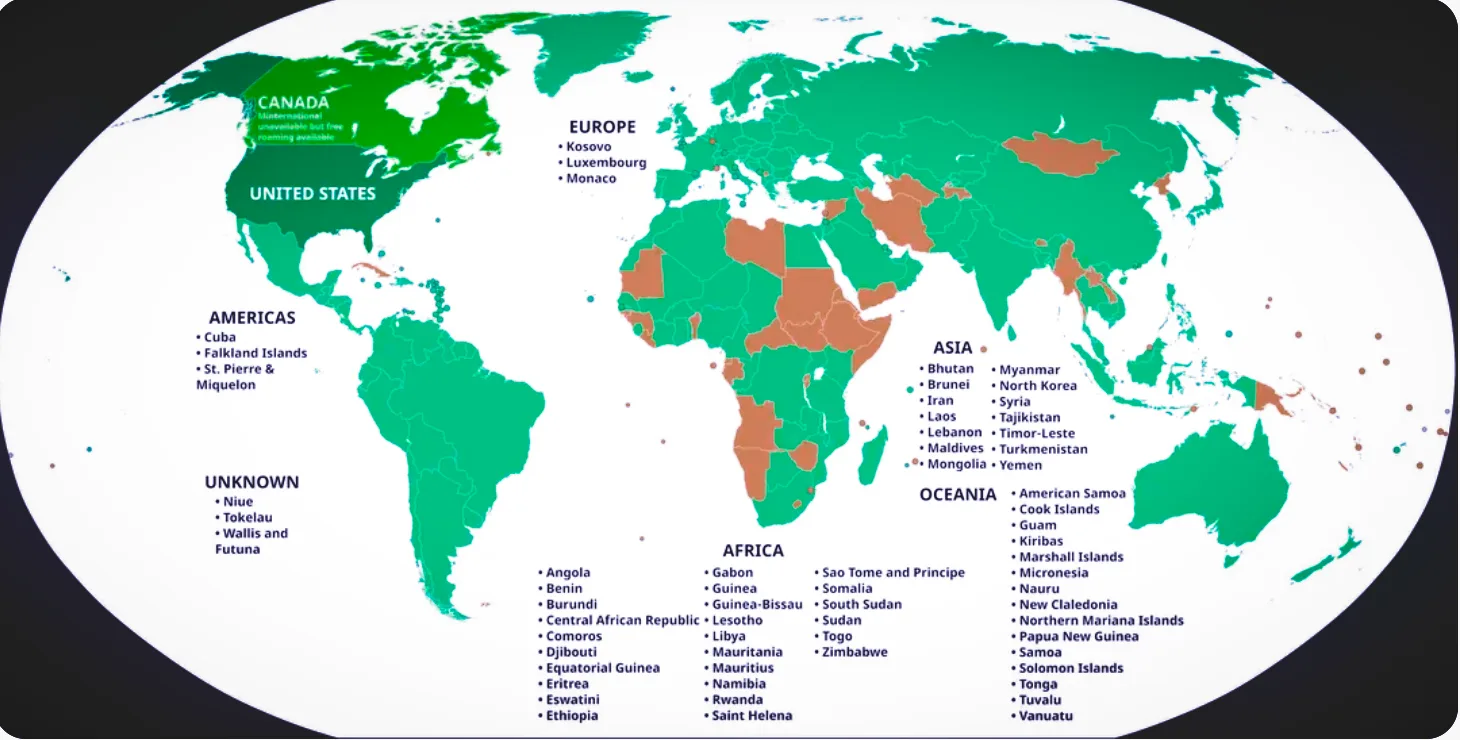
I found this unofficial map on Mint Reddit and verified via Mint’s website that the countries in brown and listed in bullet points are not serviceable with a Minternational Pass. However, roaming agreements can change frequently, so always verify your destination directly on Mint Mobile’s site before your trip. Image by Monica Yoshida, Reviews.org
Mint Mobile roaming: How it works
In my exploration of Mint Mobile roaming, I found that the Minternational Pass has flexible and extremely affordable options. For anyone who wants to use data abroad but doesn’t want bill shock, take a look at your options below.
Speeds drop to 128kbps after data cap.
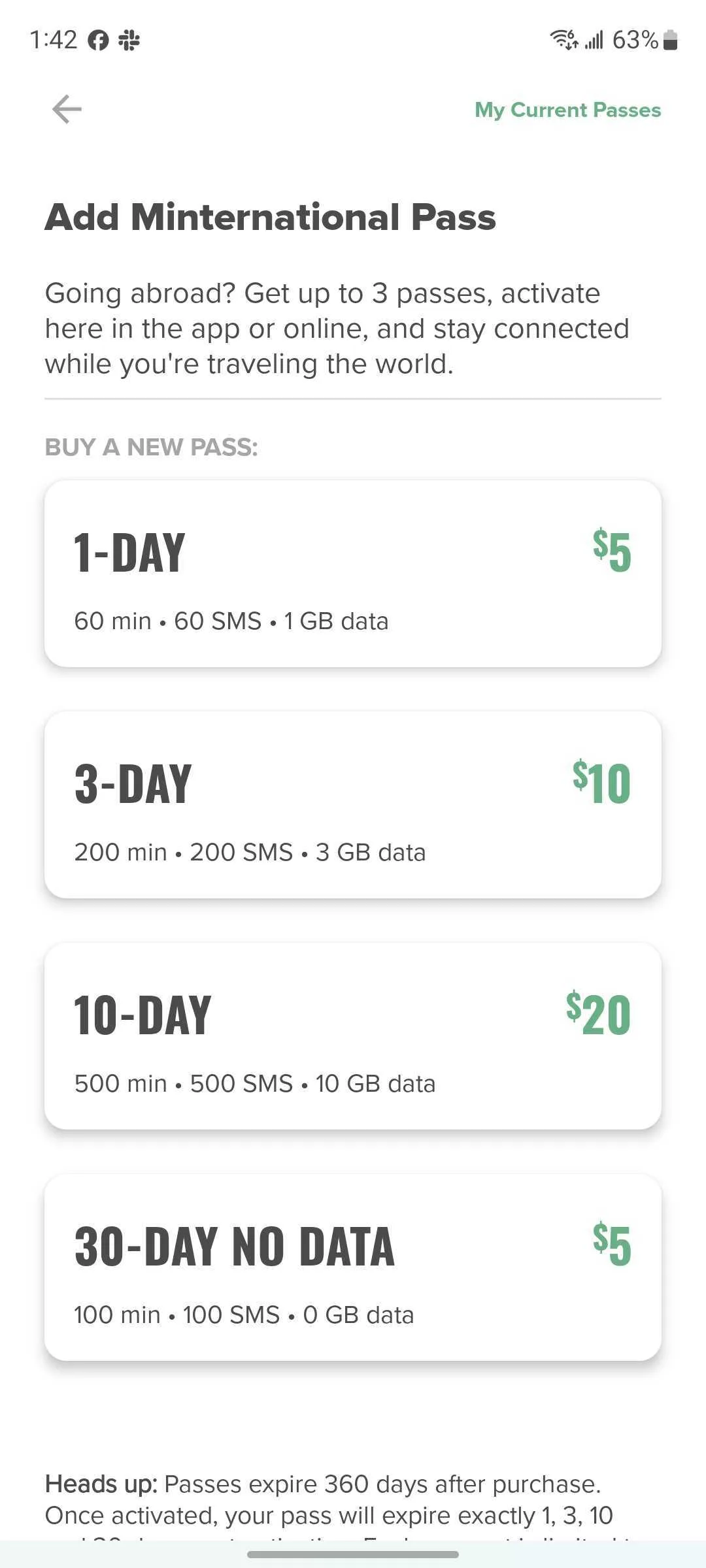
In my Mint Mobile app, I found the Minternational Pass in Menu, under the category, International Stuff. You can choose any pass, and it will remind you that it will expire in 360 days. Each account can have 3 passes (2 stored passes, and 1 active pass). Image by Monica Yoshida, Reviews.org
Best for weekend trips: 1-Day Pass ($5)
Best for 1-week vacations: 3-Day or 10-Day Pass ($10–$20)
Best for long stays with Wi-Fi (no data included): 30-Day Talk/Text Pass ($5)
International data speeds and Wi-Fi calling
While Mint Mobile offers high-speed 5G and 4G LTE data through its 180+ global partners, your actual international data speed depends on local tower congestion and 'latency'—the time it takes for your data to travel back to the US and back again. For Mint Mobile customers in other countries, expect to be deprioritized below local customers.
When you use Wi-Fi calling abroad, your phone acts like it’s still in the U.S. This means:
- Calls to the U.S., Canada, and Mexico: $0 (totally free).
- Calls to other countries: charged at standard U.S.-to-International rates (requires International Calling Credit, not a Minternational Pass).
How long does each Minternational Pass last?
A "1-Day Pass" doesn’t end at midnight. Mint Mobile uses a strict hourly countdown that begins the exact second you activate the pass.
How it works: Activation triggers a literal timer.
- 1-Day Pass: 24 hours
- 3-Day Pass: 72 hours
- 10-Day Pass: 240 hours
- 30-Day Pass: 720 hours
If you activate a new pass while an old one still has time left, the old pass expires immediately. You cannot "stack" time. The older one is cancelled immediately, and the new pass replaces it.
Wait until the last second before activating a new pass!
If you're on a 10-day trip and your 10-day pass is about to expire, wait until it is completely dead before activating a new one. Activating even 5 minutes early will delete whatever data you had left on the previous pass.
How to purchase a Minternational Pass
Before you purchase a Minternational Pass, check Mint’s site directly to make sure your travel destination is compatible with Mint Mobile roaming.
Next, purchase your Minternational Pass while you’re still on a U.S. cell tower. You can purchase a pass through your Mint app, online, or via SMS.
Mint App: Open your Mint Mobile app > Menu > Minternational Pass > Buy a pass
SMS: Text GO to 6700
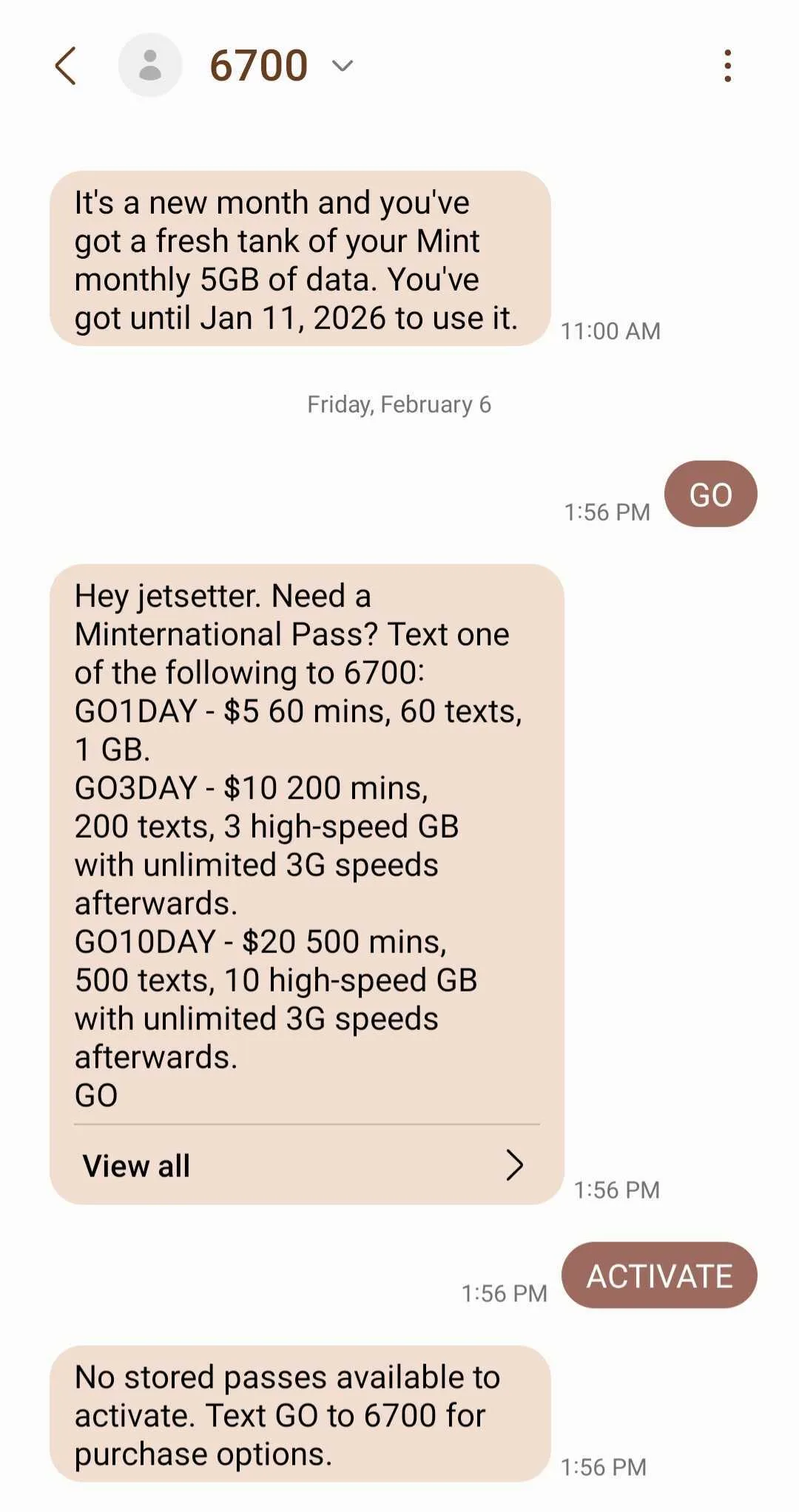
I texted GO to 6700 and immediately got a message back from Mint to pick the Mint International Pass I need. When I texted ACTIVATE, Mint reminded me that I have no stored passes. Image by Monica Yoshida, Reviews.org
Before your trip: Prepare your phone for international travel
You’ve got your pass. Now, get your phone ready to be outside of the U.S. with this checklist.
Set your phone up for travelling with a Minternational Pass:
1. Enable airplane mode to block cellular data usage
2. Enable Wi-Fi calling:
- iPhone: Settings > Cellular > [Your Mint Line] > Wi-Fi Calling > Toggle On.
- Android: Settings > Connections > Wi-Fi Calling > Toggle On.
3. Disable ‘Automatic Downloads,’ ‘Background App Refresh,’ ‘Do Not Auto-Update Apps,’ and toggle off ‘Background Data.’
4. Add Mint as a contact just in case you need to make adjustments to your plan. Text 6700 or call Mint at (800) 683-7392, free of charge.
5. Pre-download your trip essentials on your home Wi-Fi to save on data (maps, translations, and entertainment)
6. Backup your phone’s data, contacts, and important files in case of theft or losing your phone while abroad
7. Buy specific plug adapters for the country you’re visiting.
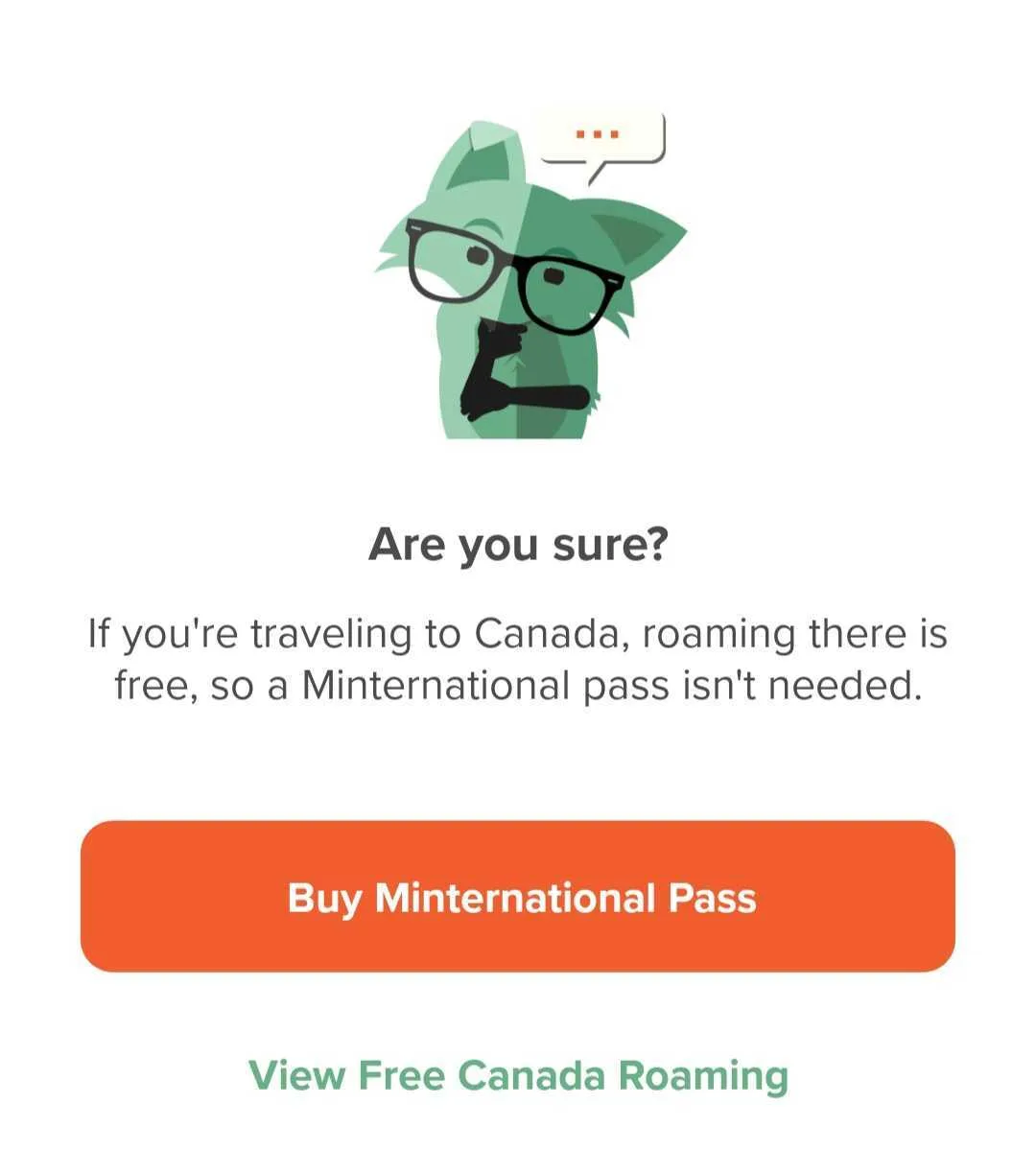
Right after you choose a Minternational Pass, a pop-up asks if you plan to travel to Canada. If so, you don’t need a pass for that trip. Image by Monica Yoshida, Reviews.org
During your trip: Manage your data balance
Don’t run out of data unexpectedly while traveling abroad.
- Monitor your balance: Text GOROAM to 6700 to check remaining data/minutes.
- Save your data: Turn on "Low Data Mode" (iOS/Android) to make that 1GB/3GB/10GB pass last longer.
- iPhone: Go to Settings > Cellular > Cellular Data Options, then toggle on Low Data Mode.
- Android: Go to Settings > Network & Internet (or Connections) > Data Usage > Data Saver and turn it on.
The "Wi-Fi calling" hack
Want to call home to the U.S. without using a single minute of your Minternational Pass? Use Wi-Fi calling. On Mint Mobile, calls made over Wi-Fi back to the U.S. are free.
After your trip: Final instructions
When your trip is done, you don’t have to do anything. Unlike with major carriers, you don't have to call Mint to cancel a roaming plan or remove a "Daily Pass" feature. Once your time is up, it’s over. No subscriptions, no hidden fees, just ciao!
Do these final things to get your phone back to its original mode:
1. Turn off roaming when your pass expires.
Turn off Data Roaming in your phone settings the moment you get a "Pass Expired" text or your hourly window closes. This helps you save your battery and prevent your phone from uselessly searcing for a signal.
2. Check your “pending" passes.
Open the Mint App and look at your "Minternational" dashboard. If you see a pending pass, make a note in your calendar to use it for your next travel weekend or international layover before it hits that 360-day mark.
3. Reset your data counter.
Reset your data usage so you can track your data in real-time. The Mint App tells you how much data you have left, but your phone’s internal settings keep "lifetime" tally of roaming data that can get confusing on your next trip.
iOS: Settings > Cellular > Reset Statistics (at the very bottom).
Android: Settings > Connections > Data Usage > Reset.
4. Restore your original data settings.
If you turned off "Background App Refresh" or used "Low Data Mode" to stretch your 10GB pass, don't forget to turn them back off once you're back on your unlimited US plan so your apps can update and sync normally over the US network.
Screenshot this before your trip!
- The "Magic" SMS Codes
Send these to 6700 (no internet required, free of charge):
- ACTIVATE – Activate a pre-purchased pass once you land.
- GOROAM – Check your remaining data, minutes, and time left on your pass.
- ROAM – Buy a new pass instantly using your saved payment method.
- The settings safety check
- Data Roaming: Must be ON for your pass to work.
- iPhone: Settings > Cellular > Cellular Data Options.
- Android: Settings > Connections > Mobile Networks.
- Wi-Fi calling: Turn ON before leaving the US to make free calls back home.
- If your phone says "No Service" after landing:
- Toggle airplane mode: Wait 10 seconds, then turn it off.
- Manual network selection: If "Automatic" isn't working, go to Settings > Cellular > Network Selection. Toggle off "Automatic" and manually select a local carrier (try a few different ones).
- Check Access Point Name (APN) settings: Ensure your APN is set to “Wholesale” (Mint’s standard).
- Navigate to Settings > Network & Internet/Connections > Mobile Network > Access Point Names, select the Mint profile or create a new one, and set the APN to “Wholesale.”
- Wi-Fi calling as a backup: For extra security against roaming charges, activate Airplane Mode and then turn on Wi-Fi.
Not sold on Mint Mobile or Minternational?
Check our full Mint Mobile review so you can explore a firsthand account from a customer of over four years.
Or check out our guide to the Best International Cell Phone Plans to see more options.
FAQ
Yes. You can use your pass across multiple destinations, so long as they are included in Mint’s list of more than 180-supported countries. as long as they are on the 180+ list.
Your speeds will be throttled, but you will never be charged overage fees with a Minternational Pass. Buy another pass to keep using your Mint Mobile service abroad.
Once purchased, you have 360 days to activate your pass via your Mint Mobile account.

Related Articles

Mint Mobile International Roaming Review: How To Choose a Pass, Set It Up, and Use It Abroad
With Mint Mobile, you can buy a Minternational Pass that allows you to text, call,...

My Philo Review 2026: I Love This Budget Service Despite Its Limitations
Philo TV is one of the cheapest streaming apps around, offering 63 channels for only...

Meet Spectrum INVINCIBLE WiFi: When the Internet Goes Out, This Service Kicks In To Keep You Connected
Spectrum Invincible WiFi is a new service offered by Spectrum Internet that integrates a built-in...

My Metro by T-Mobile Review (2026): A Cheaper Way to Get on the Fastest Mobile Network
Metro by T-Mobile specializes in offering affordable prepaid cell phone plans. Read our Metro by...



